
IPTV Smarters Pro is one of the most user-friendly IPTV apps, offering your valued customers the ability to watch Live TV, VOD, Series, Catch-up, and Multi-Screen on their Android and iOS devices (including smartphones, smart TVs, Android boxes, and more).
One standout feature of IPTV Smarters is its Catch-up functionality. Not many apps offer this feature; it was previously only available on MAG boxes.
Here’s a list of devices that support IPTV Smarters Pro:
Android Smartphones
iOS Smartphones
Smart TVs
Android Boxes
Apple TV
Computers (both Windows and MacBooks)
IPTV Smarters is one of the top choices for watching IPTV on these devices. Another option to consider is the GSE Smart IPTV app.
Wondering how to set up IPTV on GSE?
Where can I get IPTV Smarters Pro for download?
The safest and most reliable source to download the IPTV Smarters Pro app is from the official IPTV Smarters website. You can find the download links for various devices here:
https://www.iptvsmarters.com/#downloads
For your convenience, we’ve also provided a step-by-step guide on how to download and install IPTV Smarters Pro on different devices, so you can get set up quickly and easily.
APK file for Android devices
For Android devices, including Android smartphones, Android boxes, or Android-based smart TVs, you can directly download the IPTV Smarters Pro APK file here:
https://www.iptvsmarters.com/smarters.apk
Samsung Smart TV
On your Samsung Smart TV remote, press the Smart HUB button, then search for IPTV Smarters Pro to find the app. The version 1.0.4 is compatible with Samsung Smart TVs.
LG Smart TV
On your LG Smart TV remote, press the Home button and navigate to the LG Content Store. From there, you can search for IPTV Smarters Pro and install it. Version 1.0.8 is compatible with LG Smart TVs.
Google play store
Unfortunately, the app has been removed from the Google Play Store for now. If it becomes available again, we'll update this link for you.
iPhone and Apple store
You can download IPTV Smarters Pro for your iPhone, Apple TV, or any other iOS device directly from the Apple App Store here:
https://apps.apple.com/in/app/smarters-player-lite/id1628995509
Computer (Windows or Mac)
Here are the installation files for different operating systems on your computer:
File for Windows:
Download for WindowsFile for Macbook:
Download for Mac
Firestick
First, you’ll need to download the Downloader app for your Firestick (you can easily find installation guides on YouTube). Then, download the IPTV Smarters Pro APK file from here.
Next, follow these steps:
Go to Settings on your Firestick.
Navigate to My Fire TV > Developer Options > Install from Unknown Apps.
Find and select Downloader to change its status to ON.
Open the Downloader app, enter the full APK link, and then proceed to install the app.
How to add IPTV channels to IPTV Smarters Pro app
We recommend setting up via Xtream Codes API because it enables the Catchup feature and eliminates the need to manually add an EPG URL (it will load automatically).
To add IPTV channels to the IPTV Smarters Pro app, you can set it up using the Xtream Codes API. Here’s how:
Open IPTV Smarters Pro on your device.
On the main screen, choose Add New User or Add New Profile.
Select Xtream Codes API as your setup method.
Enter the required details such as:
Username (provided by your IPTV service provider)
Password (provided by your IPTV service provider)
URL (the server URL provided by your IPTV provider)
After entering the information, click Add User.
The IPTV channels should now be added, and you can start watching them.
Setup IPTV Smarters via Xtream Codes API
Step 1: Install the app on your device from here.
Step 2: Open the app once downloaded, click on “Login with Xtream Codes API“.
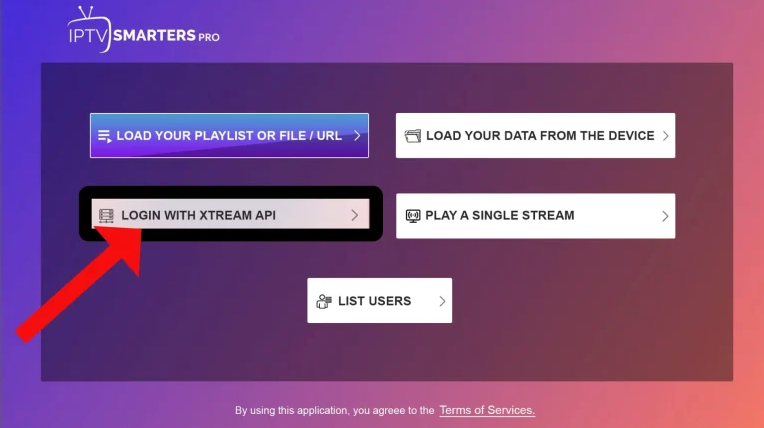
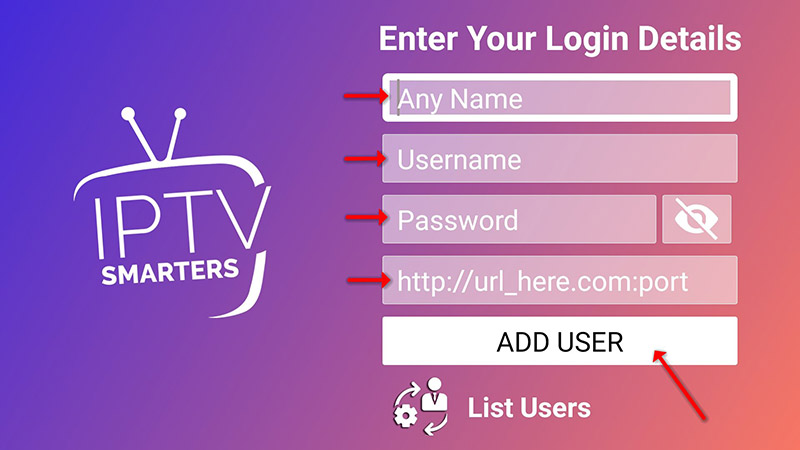
Step 3: In this step, in the first box, choose any name you'd like, such as "ANY NAME" For the second and third boxes, enter your Username and Password from your details you got via email, along with the Server URL, which can also be found in your email.
Most modern IPTV providers offer a dashboard where you can access your Login details & M3U URL.
How to find the Server Address, Username, and Password? (Check your email for the details you have got via your provider or contact them for details)
Once you've entered this information, click ADD USER to proceed to the next section.
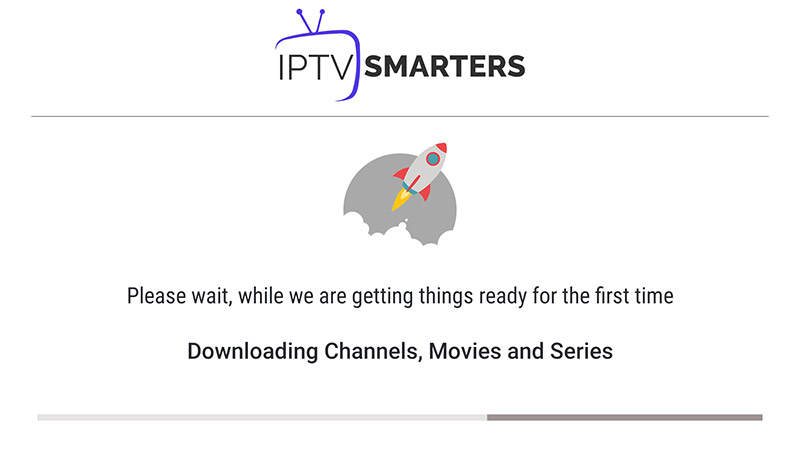
Step 4: Wait some seconds.
Step 5: Now click on “Live TV” icon as depicted in the image via a red arrow.
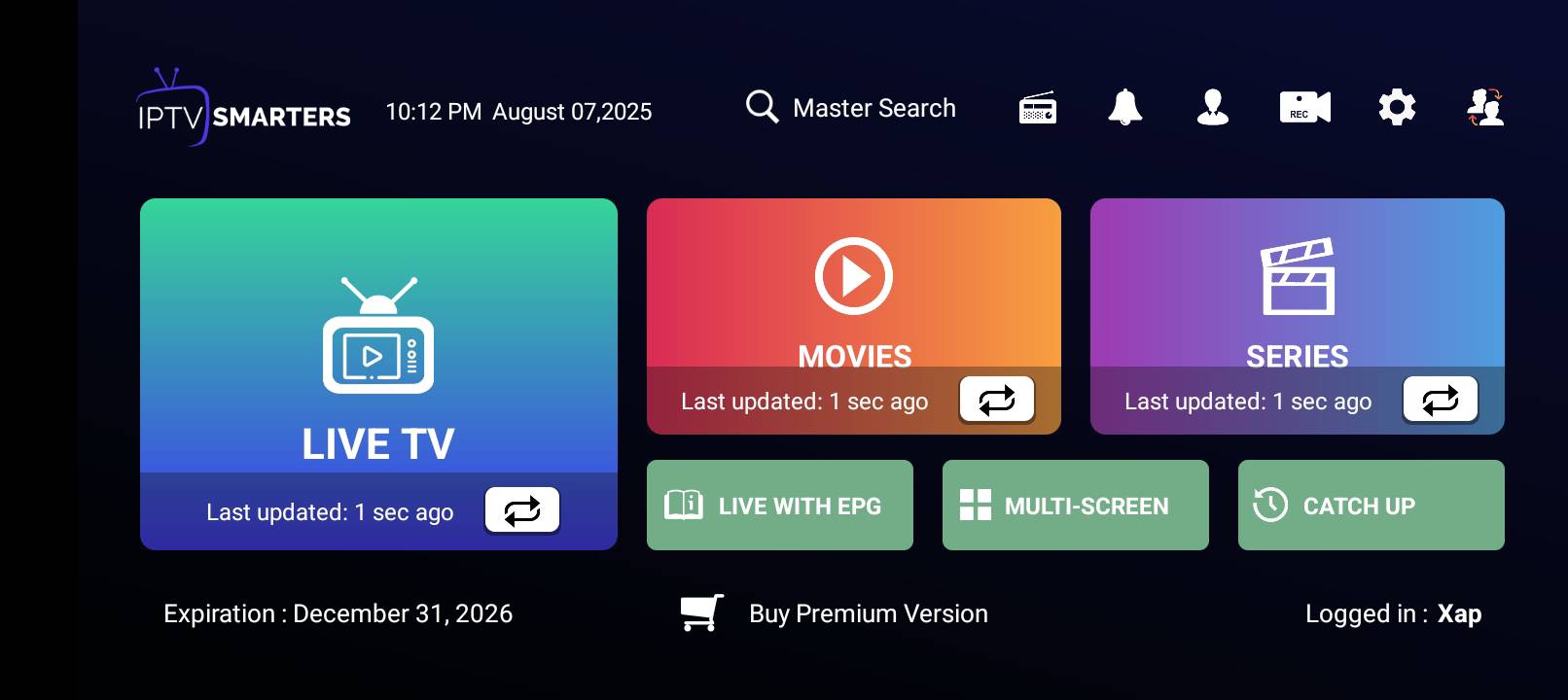
Step 6: Now, select the channel group you want to watch and then proceed to the next section.
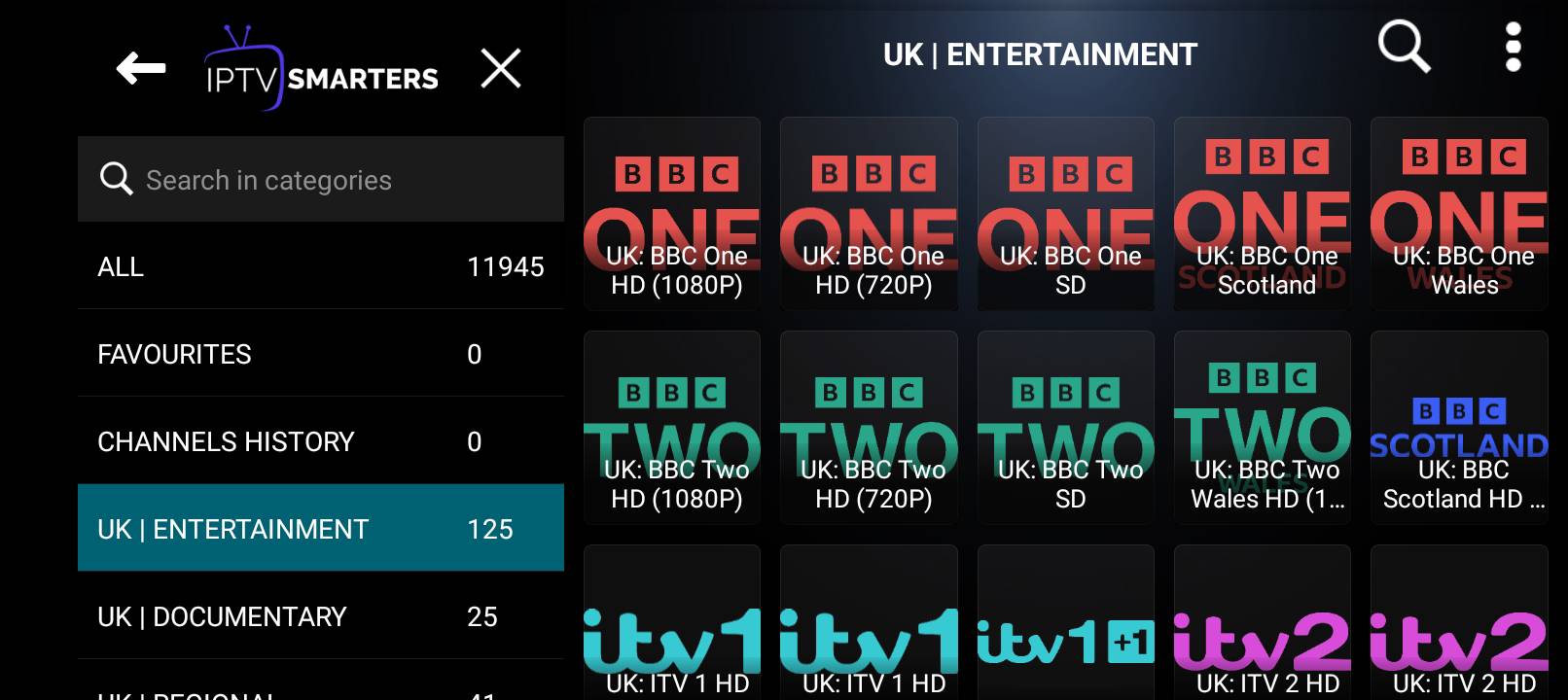
Step 7: Next, click on the channel name, then double-click the small screen to switch to full screen as the final step.
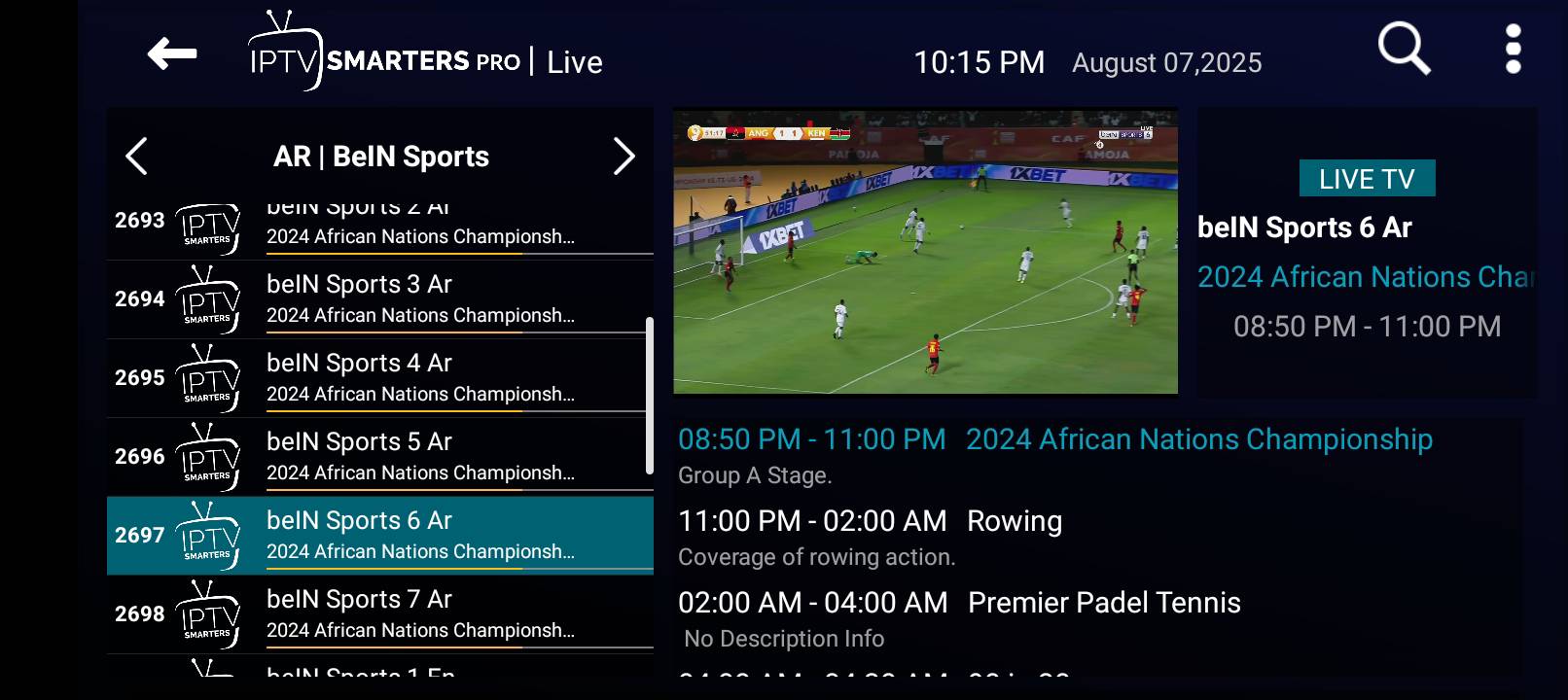
Select channels group then channel you want to watch & Enjoy!
IPTV Smarters features
Live, Movies, Series & TV
Catchup Streaming
Record the program
Multi Screen; you can watch up to 4 channels in same time
Support: EPG
Parental Control Integrated for each category
Built-in powerful player
Support: Playing with External Players
Attractive & Impressive Layout and More User-Friendly
Support: Dynamic language switching
In this article, we've explained two methods for adding IPTV channels to IPTV Smarters. If you have any questions or want to discuss further, feel free to share your thoughts in the comment section below!