
MAG refers to a series of set-top boxes developed by Infomir that are used to stream IPTV content. These devices are often used in conjunction with services like Stalker Portal, allowing users to access IPTV channels, VOD, and other media services through a simple, user-friendly interface.
MAG boxes are popular for their stability, wide compatibility with different IPTV services, and support for features like catch-up TV, video on demand, and more. They essentially act as a bridge between the IPTV service and your TV, providing a seamless viewing experience.
This app is available for a variety of devices across different platforms, including Google Play, Amazon Webstore, Samsung Tizen, and more. You can see all the supported stores in the image below.
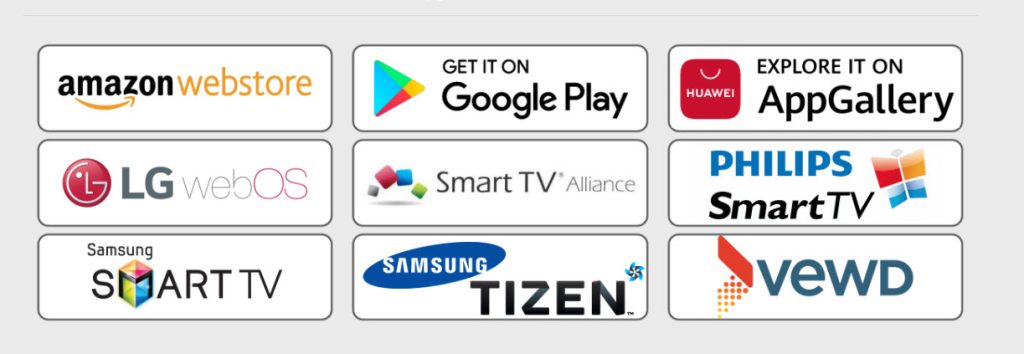
You can download Smart STB for different platforms directly from their website:
https://www.smart-stb.net/
Activation of the Trial Period
Step 1: From the app market on your Smart TV, search for and install the Smart STB app.
Once the app is installed, we can begin the testing period. To do this, we first need to find the Software MAC Address, which is required for activation on the Smart-STB site.
What is the MAC?
The MAC (Media Access Control) address is a unique identifier assigned to your network interface. It's used for device recognition and communication on a network.
To find the Software MAC address, follow the instructions below:

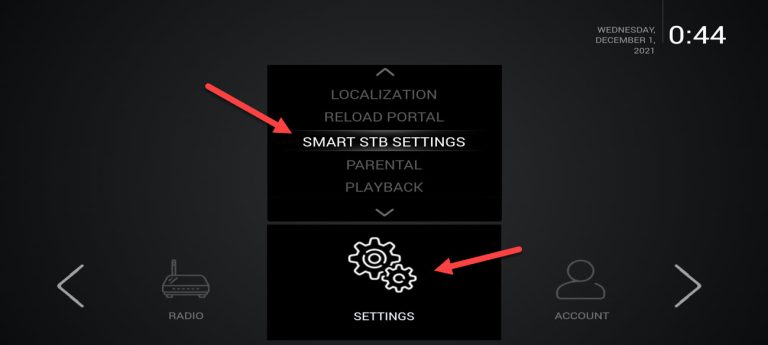
After loading in the main page to to “Setting” then “Smart STB Settings“.
Now select “Device Info“.
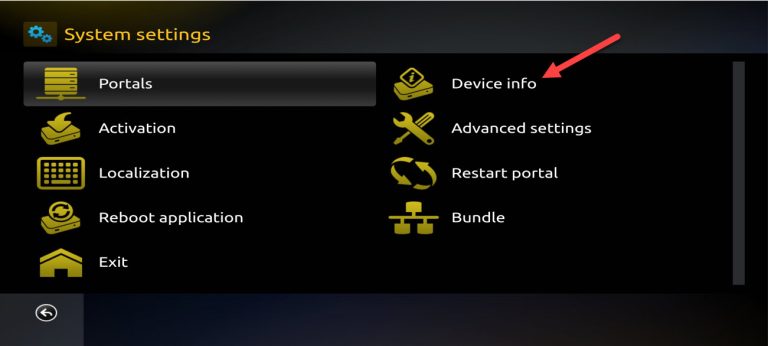
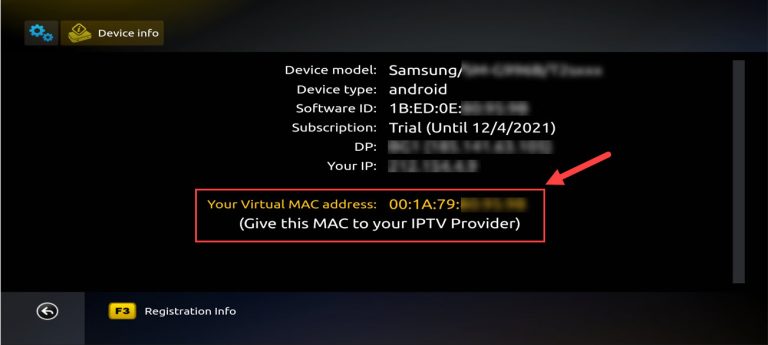
Here, you’ll find several details about your device, including the MAC addresses:
Software MAC Address: This is required for activating the app on the Smart-STB website.
Virtual MAC Address: This is needed for IPTV service activation on your IPTV provider’s server.
Make sure to note down both MAC addresses, as they’ll be needed for the activation process.
Step 2: Now that we have the necessary MAC address information, it's time to activate the app's trial period.
First, go to the trial activation page on the Smart-STB website by opening this URL:
https://www.smart-stb.net/
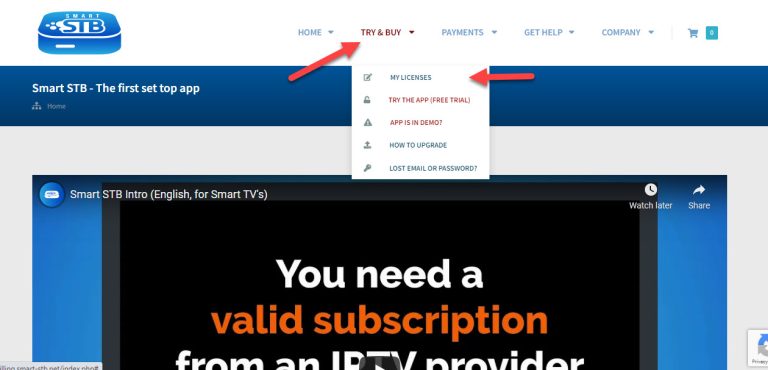
On the homepage of the Smart-STB website, click on "TRY & BUY", then select "MY LICENSE" to proceed with the activation.
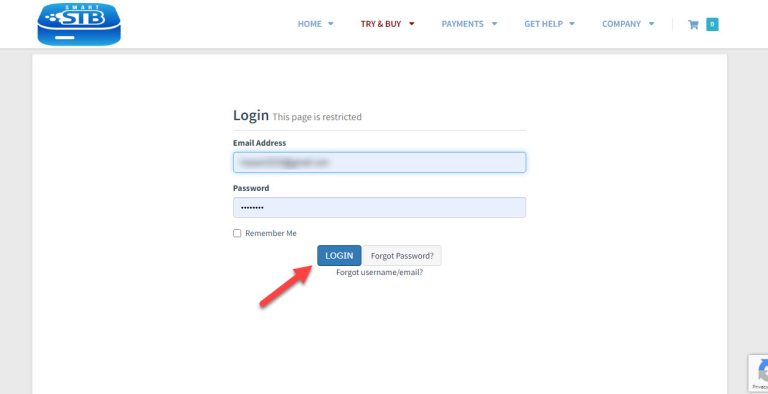
Step 3: You will need to register on their website to proceed. If you haven't registered yet, we recommend doing so now.
You can register here:
https://smart-stb.net
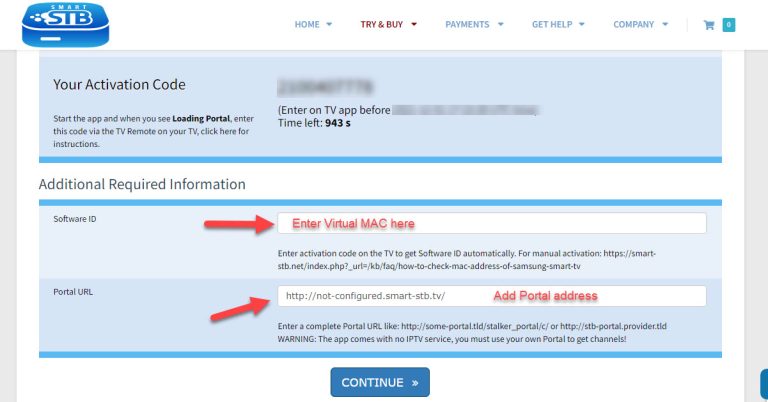
Now, enter your Virtual MAC address and the Portal address you received from your IPTV provider. Once you've entered this information, you can activate your 7-day free trial for the Smart STB app.
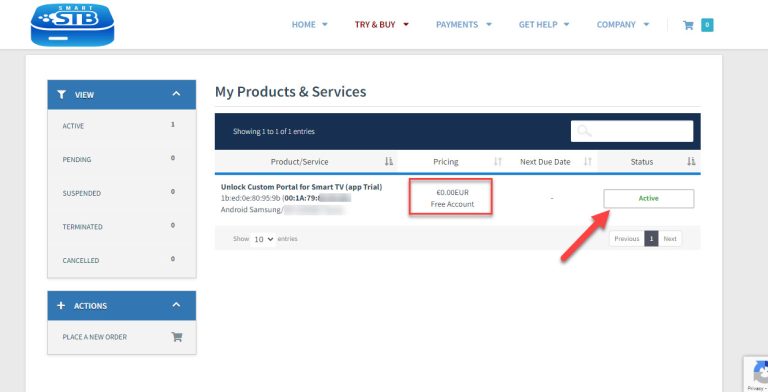
Now, as you can see, the Order Status is set to Active, meaning the trial period has successfully started.
Now, if you go back to the "Device Details" page of the app on your TV (where you visited earlier), you’ll see that the trial has started, and the expiry date will be displayed.
Activation of the paid licenses
Considering that the Software MAC address and account registration on the Smart-STB website have already been completed, upgrading to a paid license is quick and easy.
Step 1: Log into the Smart-STB website and go to "MY LICENSE".
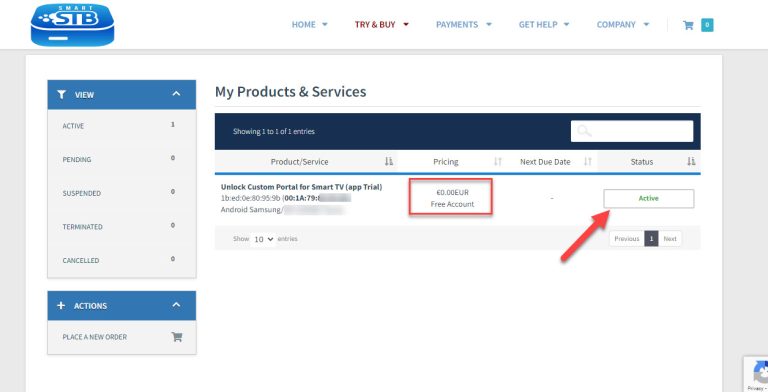
Click on "Active" to proceed with the upgrade.
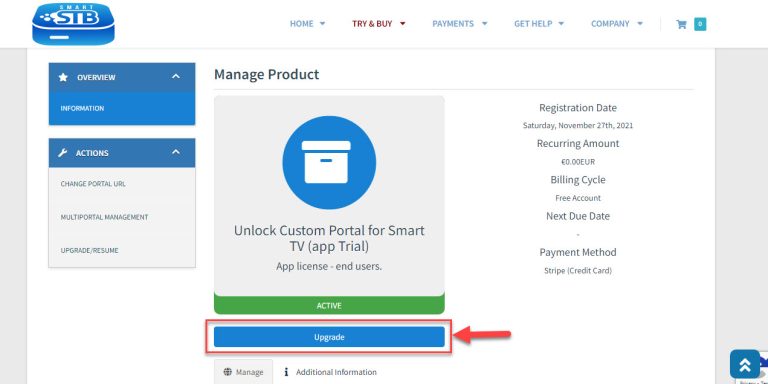
Step 2: Click on “Upgrade“.
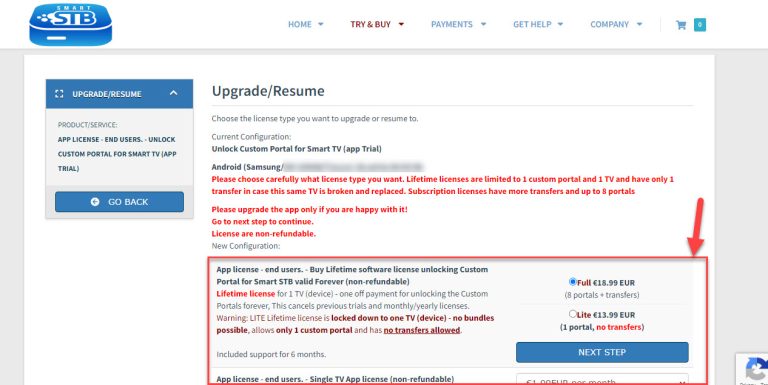
Step 3: Here, you'll see the available paid monthly and yearly licenses that you can subscribe to.
For instance, if you subscribe to the lifetime package, the subscription status on the device info page will change to Paid, and the expiry date will be set to Never, as it's a lifetime subscription.
Add or Change Portal address on Smart STB
Now that the app is activated, you need to input an IPTV source from your chosen provider.
From the device info page of the app, locate the Virtual MAC address and send it to your IPTV provider. They will register the MAC address on their system and provide you with a Stalker Portal URL.
Once you receive the portal URL, you can add the Portal address in this way:
Add Portal directly on app
Just like we did earlier at the beginning of this tutorial, once the Loading Portal sign appears, press Enter. Then, go to Smart STB Settings.
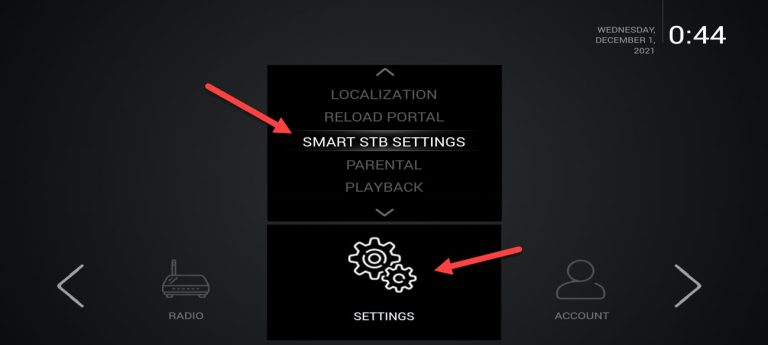
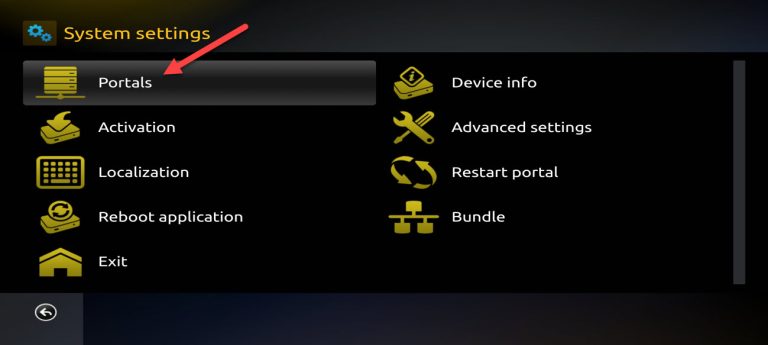
Now choose Portal as we need to input the portal URL. You can ask for MAG portal from your IPTV provider.
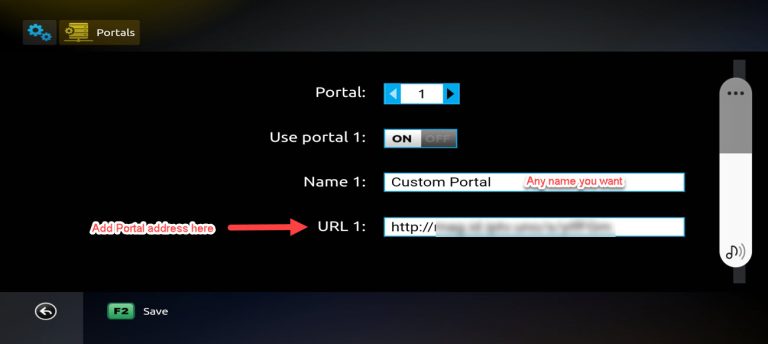
For Name 1, type the desired name for the main portal, and in URL 1, input the URL provided by your IPTV provider. Once you've entered this information, press the Save button on your remote controller.
After saving, go back to the previous page and select Restart Portal to complete the setup.
Next time you start the app, IPTV portal should load with bouquets and details of IPTV service ready to be used.
Features of Smart STB
Categorized live tv list
Categorized on-demand list
Electronic Program Guide (EPG) supported
Program Icons (Picons)
Fast channel buffering
We’d love to hear your thoughts! Please share your opinion and feedback in the comments section below to help us improve the quality of our articles. Thank you in advance!