AmbKonnect
Home
TV Channels
Guides
Resellers
Store
  1. Home
  2. /
  3. Help Centre
  4. /
  5. IPTV Applications
  6. /
  7. How to setup IPTV on TiviMate IPTV Player?
← Back to Help Centre
IPTV Applications · Android AppsUpdated 3 Jul 2026

How to setup IPTV on TiviMate IPTV Player?

TiviMate IPTV Player Overview

TiviMate IPTV Player is an Android-based application used to watch IPTV content. It supports both remote playlists and the Xtream Codes API system. It's a popular choice for streaming IPTV channels on Firestick devices.

How to Add IPTV Channels to TiviMate Using Xtream Codes

In this guide, we'll walk you through the steps to add IPTV channels to the TiviMate IPTV Player using the Xtream Codes API. At the end, we'll also highlight some of the app’s key features, including Catch-Up, Recording, Subtitles, and more.

Setting Up TiviMate IPTV Player via Xtream Codes API

Step 1: Download and install the TiviMate app from the Google Play Store:
https://play.google.com/store/apps/details?id=ar.tvplayer.tv

Step 2: Once the app is open, click on "ADD PLAYLIST" to begin.
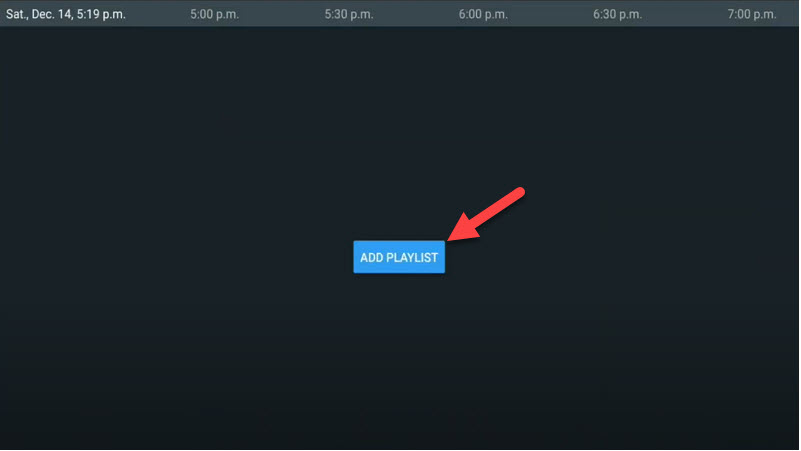
How to setup IPTV on TiviMate IPTV Player? — illustration 1

Step 3: Click on “Xtream Codes login” and them Next.
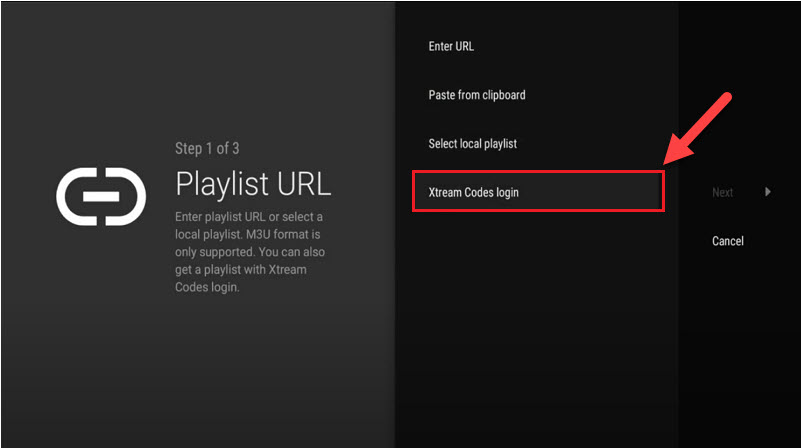
How to setup IPTV on TiviMate IPTV Player? — illustration 2

Step 4:
Enter the Server Address, Username, and Password — these details can be extracted from your M3U URL.

Most modern IPTV providers offer a user dashboard where you can easily access your M3U link and retrieve this information.

Need help finding your Server Address, Username, and Password?
Simply refer to your M3U URL format or check your IPTV provider's dashboard.

If you want access to Video on Demand (VOD) content, make sure to enable the “Include VOD” option.
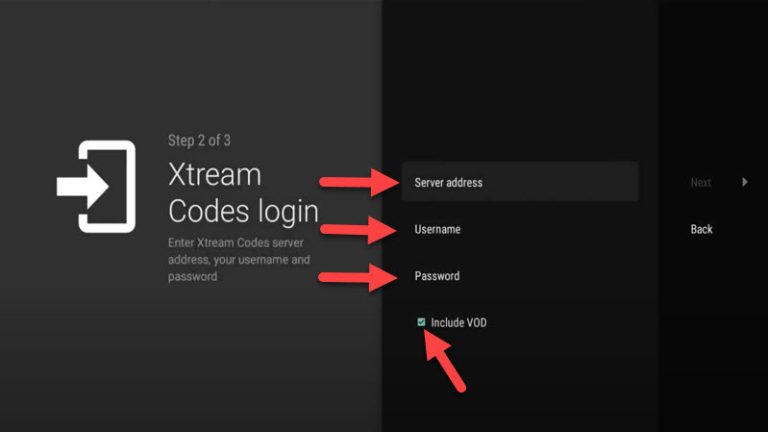
How to setup IPTV on TiviMate IPTV Player? — illustration 3

Proceed, and after a short moment, your channels will load and appear.


TiviMate IPTV Player Features

TiviMate offers a variety of useful features designed to enhance your IPTV experience. Some of the key features include:

  • A modern user interface optimized for large screens

  • EPG (Electronic Program Guide) with scheduled updates

  • Auto-start on device boot

  • Ability to mark and access favorite channels

  • Picture-in-Picture (PiP) support

  • Catch-up TV functionality

  • Channel recording options

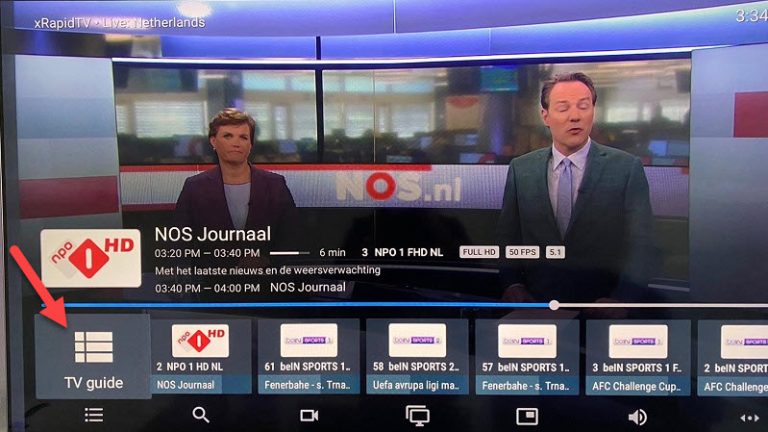
Once you open a channel, you'll see the playback interface. To view the program guide, simply click on "TV Guide".
How to setup IPTV on TiviMate IPTV Player? — illustration 4

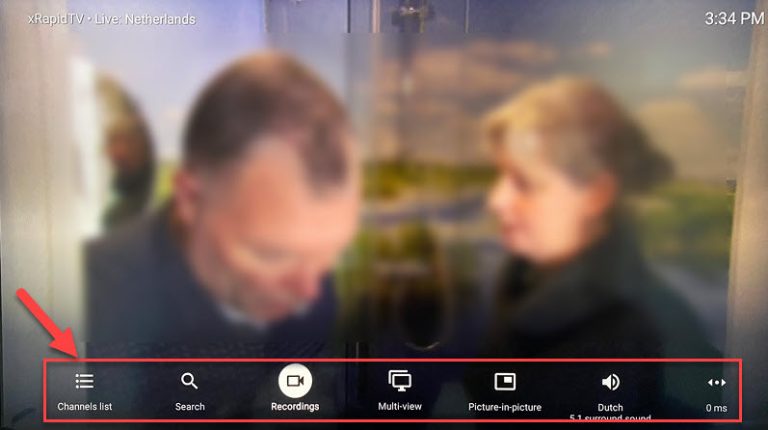
By holding the “OK” button for 2 seconds you can see the setting menu, here you can see many features like Recording.
How to setup IPTV on TiviMate IPTV Player? — illustration 5

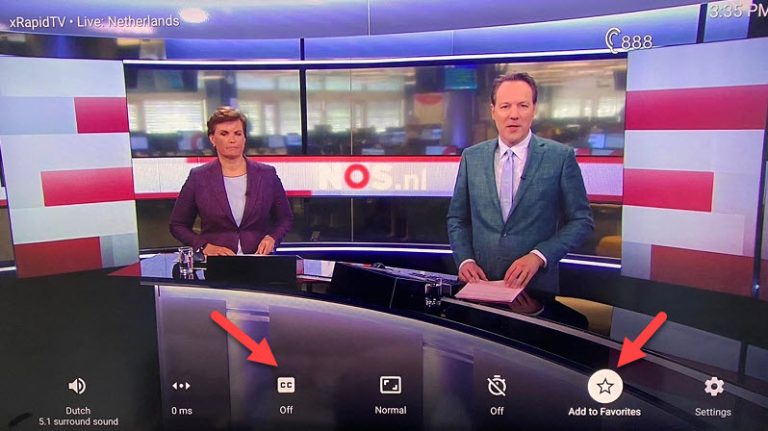
Scroll right a little and you will see other options like subtitle enable “CC” or “Add to Favorites” .
How to setup IPTV on TiviMate IPTV Player? — illustration 6

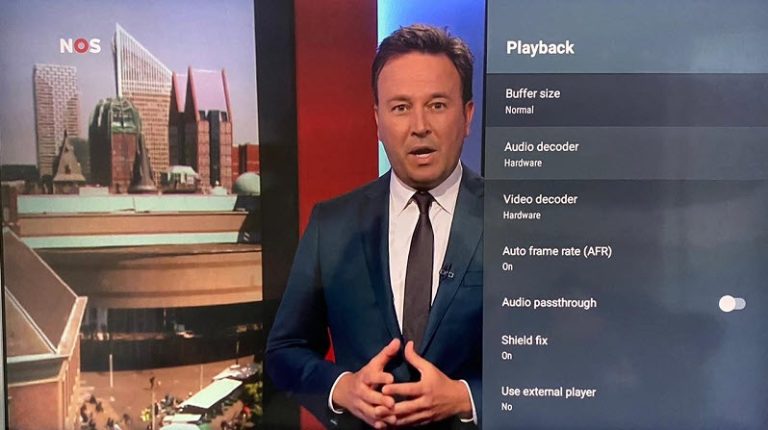
At the end right click on “Setting” to see more options.

How to setup IPTV on TiviMate IPTV Player? — illustration 7How to setup IPTV on TiviMate IPTV Player? — illustration 8

More in Android Apps

View all →
  • How to setup IPTV on IPTV Smarters Pro?
  • How to setup IPTV on GSE via Xtream-Codes API?
  • How to Download and Install an IPTV App (APK) on Android Mobile or Android TV Box

Related guides

IPTV Applications · Android Apps

How to setup IPTV on IPTV Smarters Pro?

IPTV Smarters Pro is one of the most user-friendly IPTV apps, offering your valued customers the ability to watch Live TV, VOD, Series, Catch-up, and Multi-Screen on their Android and iOS devices (including smartphones,

Read guide →
IPTV Applications · Android Apps

How to setup IPTV on GSE via Xtream-Codes API?

How to Set Up IPTV on GSE SMART IPTV Using Xtream-Codes API In this guide, we’ll walk you through the process of adding IPTV channels to your GSE SMART IPTV App using the Xtream-Codes API method. GSE is a powerful, custo

Read guide →
IPTV Applications · Android Apps

How to Download and Install an IPTV App (APK) on Android Mobile or Android TV Box

IPTV (Internet Protocol Television) apps allow you to stream live TV channels, movies, and on-demand content via the internet. Many IPTV apps are not available in the Google Play Store and must be installed manually usin

Read guide →
IPTV Applications · Windows

How to setup IPTV on Kodi?

Installing and setting up Kodi is quick and straightforward. Simply download the app, run the installer, and follow the setup wizard. Once installed, you can enhance your experience by adding a variety of community-devel

Read guide →

Explore AmbKonnect

  • Quick setup guidesGet streaming in under 10 minutes
  • All help articles42 guides for every device
  • TV channel list15,000+ live channels worldwide
  • Pricing plansCompare subscription options
  • Subscribe nowInstant activation, money-back guarantee
  • Contact supportOpen a ticket — we reply 24/7
All articlesQuick setup guidesContact supportSubscribe now
AmbKonnect

Seamless Streaming, Unmatched Quality. Your Ultimate IPTV Experience. Since 2010.

Navigation

  • Home
  • TV Channels
  • Subscribe
  • Members Area

Help Center

  • Blog
  • Help Centre
  • Setup Guides
  • Contact Us

Legal

  • Terms
  • Privacy
  • Abuse report
© 2026 AmbKonnect. All rights reserved.