
Sony Smart TVs, powered by Android TV or Google TV, offer a powerful platform for streaming a variety of content — including IPTV. With the right IPTV app, you can enjoy live TV, movies, series, and more directly on your Sony Smart TV using an M3U playlist or Xtream Codes provided by your IPTV service.
In this guide, we’ll walk you through the step-by-step process to set up IPTV on your Sony Smart TV.
✅ What You’ll Need
Before you begin, make sure you have:
A Sony Smart TV (Android TV or Google TV-based)
A stable internet connection
An IPTV subscription (M3U URL or Xtream Codes login)
A supported IPTV player app
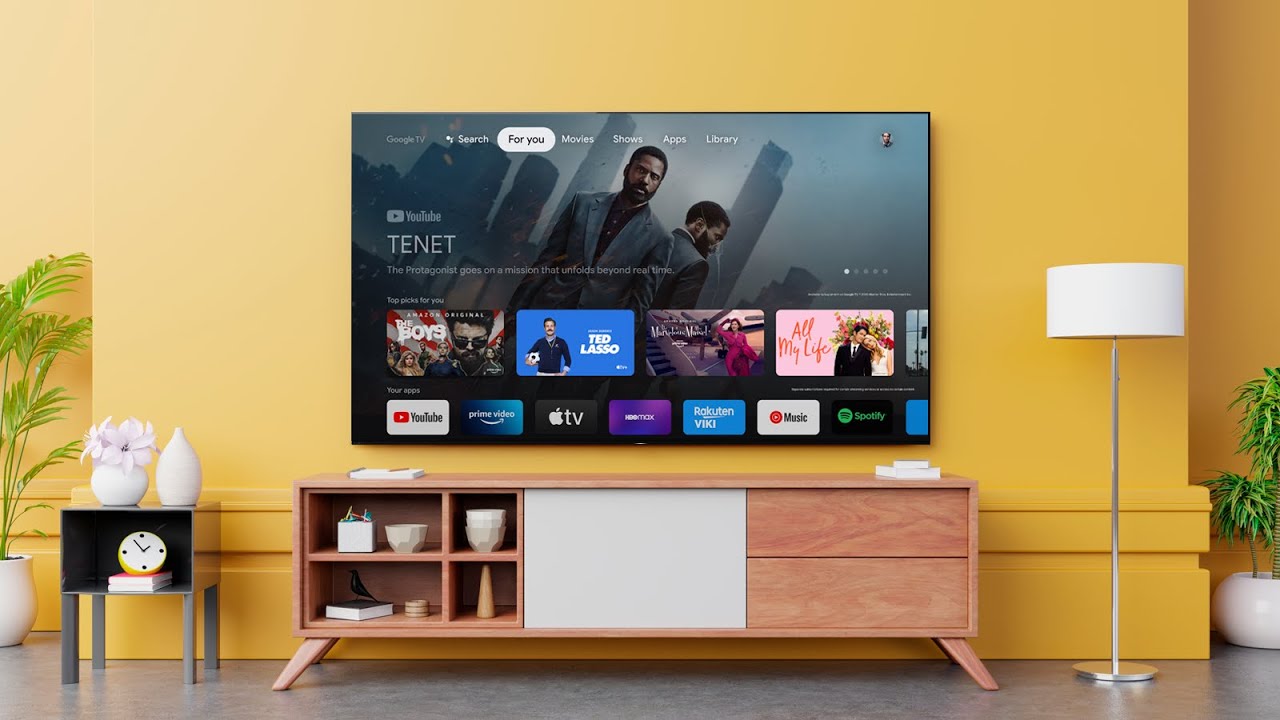
📲 Step 1: Choose and Install an IPTV App
Since Sony Smart TVs run on Android/Google TV, you can install IPTV apps directly from the Google Play Store.
Recommended IPTV Apps:
TiviMate IPTV Player
Flix IPTV
Smart IPTV (Note: May require manual installation)
To install:
On your Sony TV remote, press the Home button.
Navigate to the Google Play Store.
Use the search bar to find your chosen IPTV app (e.g., “IPTV Smarters Pro”).
Select the app and click Install.
Wait for the installation to complete.
🔑 Step 2: Set Up IPTV App with Your Playlist
After installing the app, open it and choose the setup method based on your IPTV provider’s credentials.
Option 1: Using Xtream Codes API
Open the IPTV app and select "Login with Xtream Codes API".
Enter the following:
Any Name (for profile)
Username
Password
Server URL
Click Add User or Login.
Option 2: Using M3U Playlist URL
Open the IPTV app and choose “Load Your Playlist or File/URL”.
Enter:
Any Name for the playlist
Your M3U URL from the IPTV provider
Leave EPG and VOD fields blank (if included in M3U).
Click Add User or Login.
📡 Step 3: Start Streaming
Once logged in, the app will start loading your IPTV channels, movies, and series. This may take a few seconds, depending on the size of the playlist and internet speed.
Navigate through the categories to enjoy:
Live TV channels
Video on demand (VOD)
Series
Catch-up (if supported)
EPG (TV Guide)
⚠️ Tips & Troubleshooting
Use a VPN for privacy and to avoid geo-blocks.
Make sure your playlist URL or Xtream Codes are correct.
If the app crashes or doesn’t load content, try clearing the app’s cache or reinstalling.
Some apps like Smart IPTV may require activation fees after trial use.
📌 Final Thoughts
Setting up IPTV on a Sony Smart TV is a straightforward process thanks to Android/Google TV support. With a reliable IPTV app and a valid subscription, you can turn your Sony TV into a complete entertainment hub for live channels, movies, and series.