
IPTV (Internet Protocol Television) apps offer a powerful way to stream live TV channels, movies, and shows on your Amazon Firestick. Since many IPTV apps aren’t available on the Amazon App Store, the most common method to install them is by using the Downloader app.
This guide will walk you through the process of installing any IPTV app on your Firestick device using Downloader.
✅ What You Need Before Starting:
An Amazon Firestick or Fire TV
A stable internet connection
An AmbKonnect app download link (Smart App or Q App)
📥 Step-by-Step Guide to Install IPTV App on Firestick via Downloader
Step 1: Prepare Your Firestick
Go to the Home screen of your Firestick.
Click on Settings (gear icon on the top-right).
Scroll and select My Fire TV.
Click on Developer Options.
Turn ON:
ADB Debugging
Install unknown apps (select Downloader and enable it)
🔒 This step is essential to allow apps to be installed from outside the Amazon App Store.
Step 2: Install the Downloader App
From the Home screen, go to Find > Search.
Type Downloader using the on-screen keyboard.
Select the Downloader app (orange icon) from the results.
Click Download or Get to install it.
Once installed, open the Downloader app.
Step 3: Use Downloader to Install IPTV App
When the Downloader app opens, you'll see a URL field.
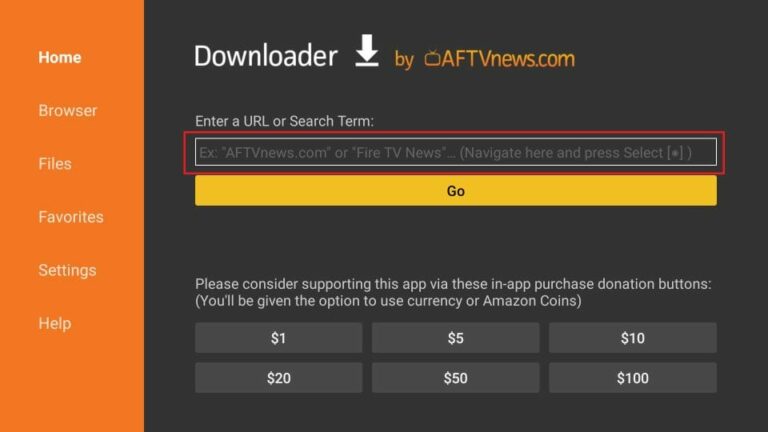
Enter the Downloader code or short URL for the AmbKonnect app you want to install:
AmbKonnect Smart App — Downloader code:
9726220· Short URL: aftv.news/9726220Amb Konnect Q App — Downloader code:
9584610· Short URL: aftv.news/9584610
Full step-by-step guides: Fire TV setup
Click Go.
The APK file will begin to download.
Once the download is complete, a prompt will appear — click Install.
After installation, choose Done or Open.
✅ You can delete the APK file after installation to save space.
Step 4: Launch the IPTV App
Go back to the Firestick Home screen.
Navigate to Apps & Channels (press and hold the Home button, then select "Apps").
Find and launch the IPTV app you just installed.
Sign in with your AmbKonnect username and password from Product Details
🛠 Optional: Move IPTV App to Home Screen
To access the IPTV app easily:
From the Apps list, highlight the IPTV app.
Press the menu button (three lines) on your Firestick remote.
Choose "Move to Front".
🧾 Final Notes
Make sure your AmbKonnect subscription is active and you have your username and password from Product Details.
Always use a VPN when streaming IPTV to ensure privacy and security.
If the app doesn’t work, check for the correct URL or try an alternative version of the APK.
🧩 Popular IPTV Apps to Try
Here are some commonly used IPTV players (you’ll need a playlist or subscription to use them):
TiviMate IPTV Player
Flix IPTV
XCIPTV Player