
MAG boxes often encounter a few common issues during use. The two most frequent error messages users experience are:
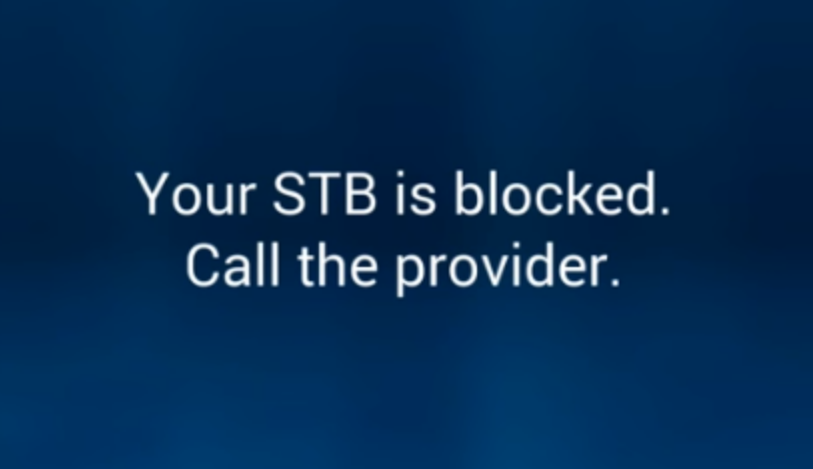
STB Blocked or a Black Screen
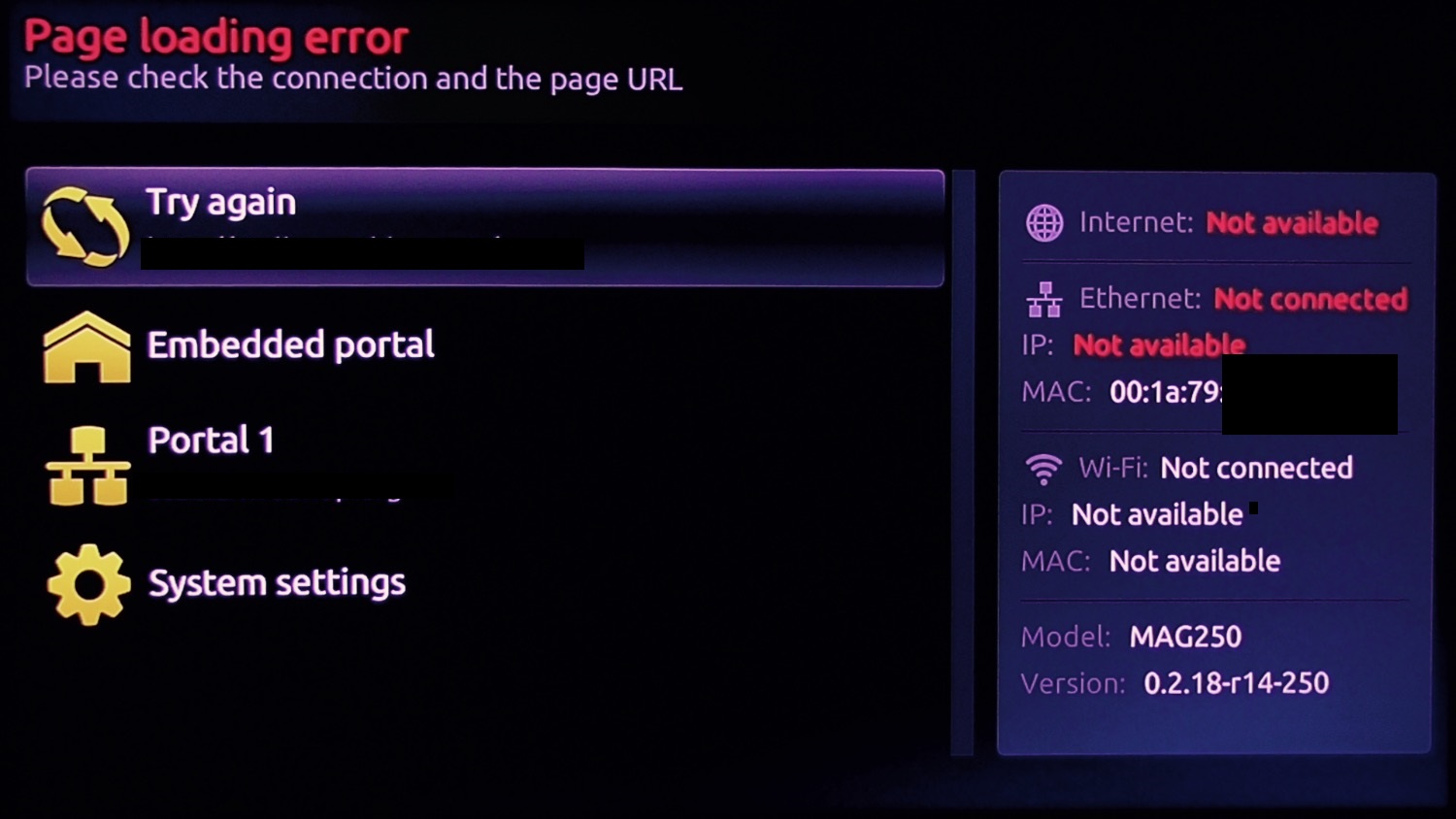
Page Loading Error
Stuck on Loading Bar
In this article, we’ll walk you through how to resolve these problems effectively.
How to Set Up a MAG Box
STB Blocked / Black Screen
The “STB Blocked” error on MAG devices can occur for a variety of reasons. Below, we’ll list and explain the most common causes behind this issue.
Note: On some MAG boxes, the “STB Blocked” message has recently been replaced by a plain black screen with no visible error text.
MAC Address Not Added or Removed from Subscription
For MAG devices, it’s essential that the MAC address is correctly linked to your IPTV subscription.
What is a MAC address on a MAG box?
It's a unique identifier that allows the IPTV server to recognize and authorize your device.
If your IPTV provider offers a user dashboard, you can log in to add your MAC address, verify whether it’s still active on your subscription, or update it if needed. If no dashboard is provided, you’ll need to contact your IPTV provider directly to register or confirm the MAC address.
Incorrect MAC Address Entry
Entering the wrong MAC address into your IPTV dashboard can trigger the STB Blocked or Black Screen error. We strongly recommend double-checking the MAC address printed on the back of your MAG box to ensure every character is entered accurately.
Expired IPTV Subscription
If your IPTV subscription has expired, you’ll likely encounter the STB Blocked or Black Screen message. Log into your IPTV dashboard to confirm the status of your subscription, and renew it if necessary.
Disabled Line
If your IPTV account is being used on more devices than allowed, your provider may disable (block) the line. To resolve this, contact your IPTV provider to check if your line has been restricted due to simultaneous connections.
ISP Blocking
In some cases, your Internet Service Provider (ISP) may block IPTV traffic, resulting in a STB Blocked or Black Screen error. To verify this, try connecting your MAG box to a different network, such as a mobile hotspot. If IPTV works on an alternate connection, your ISP is likely the issue.
A reliable solution is to use a VPN, but note that MAG boxes require a special router with VPN capability, as you cannot install VPN apps directly on the device.
Incorrect Portal Address
Just like with the MAC address, entering the wrong portal URL can cause your MAG box to display the STB Blocked or Black Screen error. Make sure to request the correct portal address from your IPTV provider and enter it accurately into your MAG device settings.
Need help updating the portal address? See: How to change the portal address on a MAG box.
Page Loading Error
This issue is usually related to internet connectivity. On the Page Loading Error screen, check the network status:
If it says "Ethernet Link: UP", the device is connected to the router.
If it says "DOWN", your MAG box is not detecting a connection—check the Ethernet cable or router port.
Even if the connection is marked as "UP," your internet might not be functioning correctly. Test your connection or switch to another network to confirm.
How to Resolve This Issue
This error is most commonly caused by a lack of internet connectivity to the set-top box (STB). First, ensure that the Ethernet cable is securely connected between your STB and the router.
Check the LAN indicator light on the router port where the cable is connected—it should be illuminated. Next, inspect the Ethernet port on the back of your MAG box; you should see two lights where the cable plugs in—one orange and one green.
If either the router light or the STB port lights are not on, it likely indicates a connection issue. In this case, we strongly recommend replacing the Ethernet cable with a new one.
If the issue persists even after replacing the cable, proceed with a full power cycle:
Unplug the power cables from both the router and the MAG box.
Plug the router back in first and wait about two minutes.
Then reconnect the MAG box power cable.
This sequence often helps re-establish the network connection and resolve the error.
When the Router and MAG Box Are in Separate Rooms
If your router is located in one room and your MAG box is in another, connected via Ethernet through a powerline adapter, check the indicator lights on the powerline sockets. If the lights are off, it means the powerline adapter has lost its connection to the router. In this case, reboot both the router and the powerline adapter.
Once the connection light reappears, reboot the MAG box as well.
If the light is on but the MAG box remains stuck on the loading screen, ensure that the LAN indicator on the front of the powerline adapter is also lit—this confirms a proper data connection.
MAG Box Stuck on Loading Bar
Sometimes, users may see a loading message stuck on the screen while trying to start the MAG box. This issue can usually be resolved by rebooting both the modem and the MAG box.