
MAG boxes are among the most popular devices for IPTV streaming, offering stable performance and ease of use. One useful feature many users overlook is the ability to record live IPTV content, such as TV shows, sports events, or movies, directly to a USB drive.
In this article, we’ll walk you through the complete process of recording IPTV content on your MAG box.
🛠 What You’ll Need
A MAG box that supports recording (MAG 254, 256, 322, etc.)
A USB flash drive or external hard drive formatted in FAT32
IPTV service with recording capability enabled
Remote control for your MAG box
⚠️ Note: Not all IPTV providers or channels allow recording due to content restrictions. Always check with your IPTV service.
✅ Step-by-Step Guide to Recording IPTV on MAG
Step 1: Plug in Your USB Drive
Insert your USB flash drive or external hard drive into one of the available USB ports on your MAG box.
Step 2: Launch Your IPTV Service
Boot up your MAG box and enter the portal provided by your IPTV service. You should now see the channel list or EPG (Electronic Program Guide), depending on your provider’s interface.
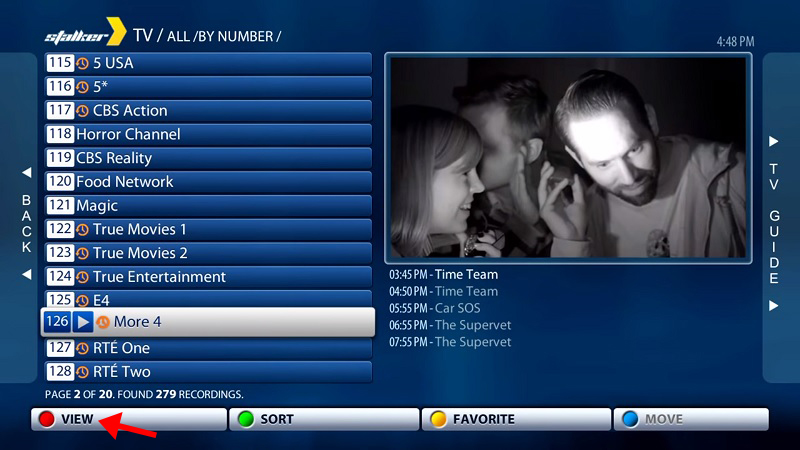
Step 3: Select the Channel You Want to Record
Using your remote, navigate to the channel you wish to record. You can either:
Record the current program
Schedule a future recording (if EPG is available)
Step 4: Start Recording
To record the current program:
Press the REC or F1 button on your MAG remote.
You will see a recording icon on the screen indicating that the program is being recorded.
📝 Tip: Press the STOP or F2 button to stop the recording manually at any time.
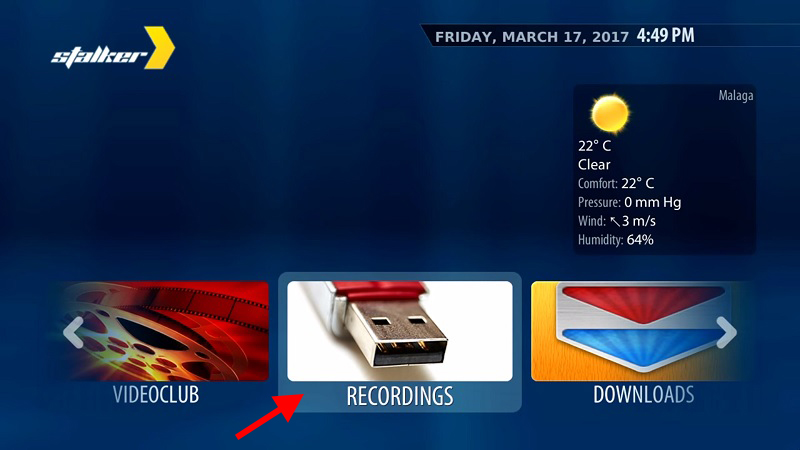
Step 5: Access Your Recordings
To view your saved recordings:
Press the “Home” button on the remote
Navigate to “Home Media”
Open the USB drive
Look for the Recordings folder
Select the recorded file and press OK to play
Step 6: Schedule Future Recordings (Optional)
If your IPTV provider supports EPG (Electronic Program Guide):
Go to the EPG menu
Highlight a future program
Press the Record button (or use the context menu depending on your MAG model)
Confirm and your MAG will record it at the scheduled time
❗ Troubleshooting Tips
Recording not working? Make sure your USB is properly formatted in FAT32 and has enough free space.
Can’t find the recording option? Your IPTV provider might have disabled it. Contact them to confirm.
Recorded file not playing? Ensure you use a supported media format and try playing it from a PC if needed.
📌 Final Thoughts
Recording IPTV on a MAG box is a great way to never miss your favorite shows or events. With just a USB drive and a few button presses, you can turn your MAG device into a personal video recorder.
Let us know in the comments if you need help with a specific MAG model or if your IPTV provider supports recording features.