
It is a mini PC device running the Android operating system which can be used for watching IPTV. There exist various Android TV Box brands including Nvidia Shield, Amazon Fire Box, Xiaomi MI Box, Minix Neo and so forth which equipped with a variety of Android apps.
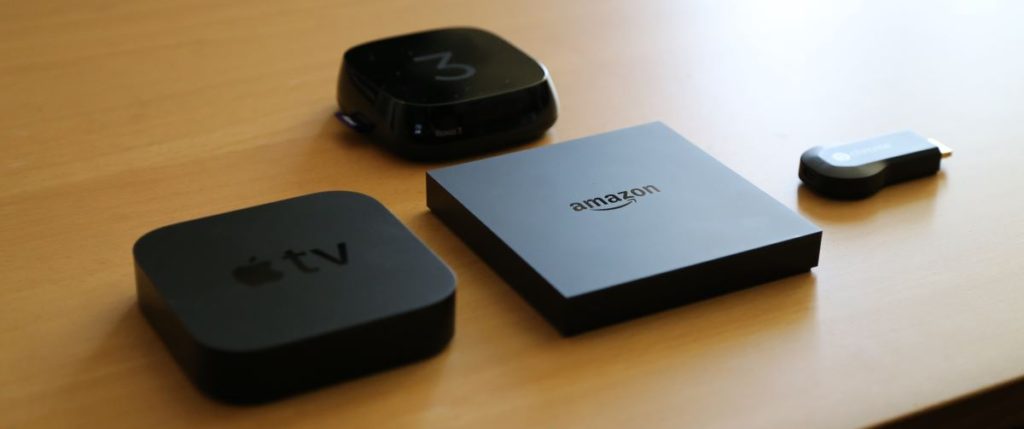
An Android TV box is generally a TV box running the Android operating system. This is the same operating system as the one appearing on your smartphone, tablet and other devices everywhere in the world.
IPTV on Android Box
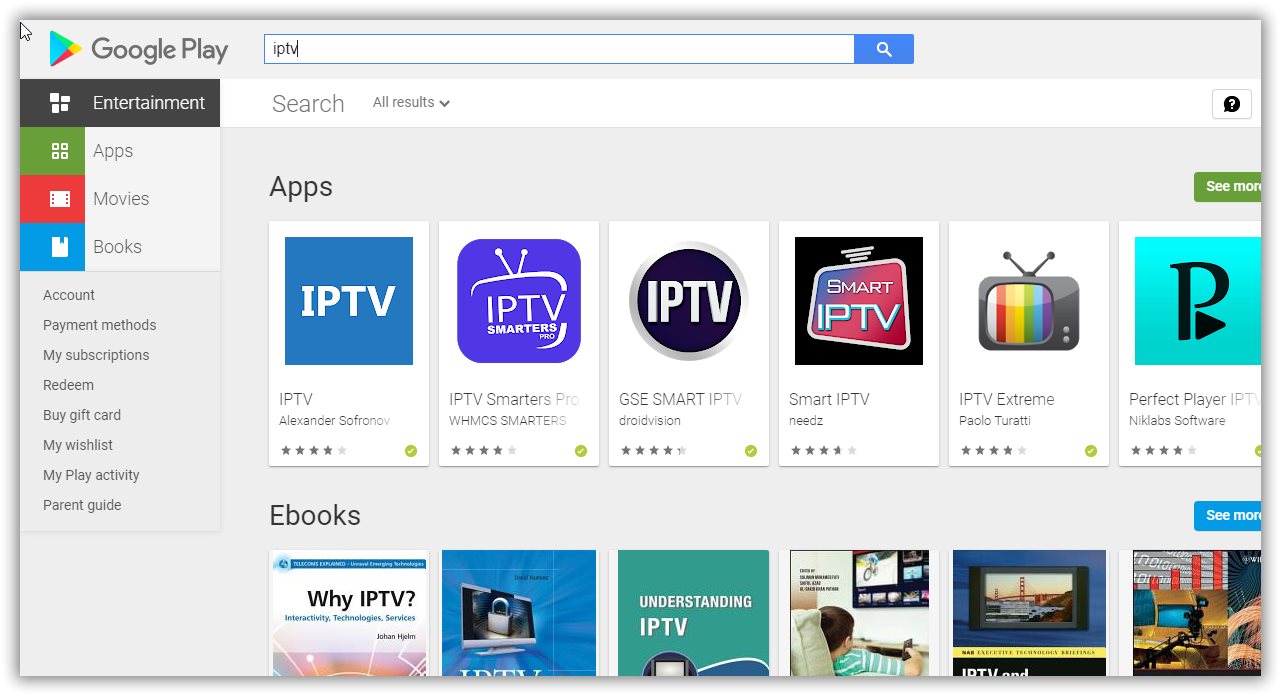
There are many applications that you can use to stream IPTV channels on your Android Box, however, IPTV Smarters , GSE Smart IPTV and Perfect player are the most suitable choices on an Android set-up box.
How to run an Android setup box
Now we are going to show you how to connect a set box to your old TV and turn it into a smart TV.
Connecting the cables
In the beginning, you must connect the HDMI cable. There’s normally one in the box. If not, you can purchase one on an online shop or local store.
Next is the Ethernet cable. This one is arbitrary. You can choose WiFi or connect directly via cable if you want to use the whole bandwidth your internet service provider has to offer, then you need. If you have the opportunity, go wired Ethernet. If that’s not an alternative, you can still go wireless.
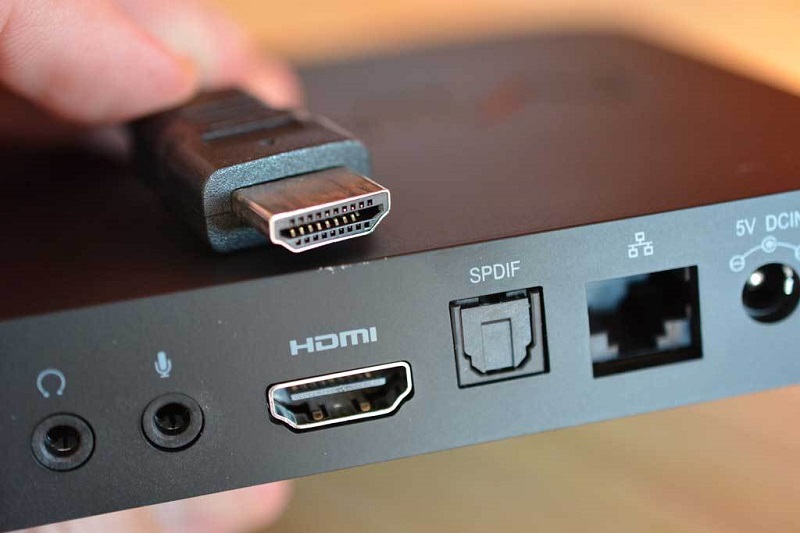
You can use a flat ribbon Ethernet cable. They take up smaller space and you can cover them easier. There’s no differentiation in play, however, we suggest that you at least use a CAT 5 ethernet cable.
The last connection is the simple one. Power cable. Find an outlet and plug it in.
Selecting an internet network
Before starting with anything else, you must connect your device to the internet. Some companies make you decided how you’re connecting the device when you load up the device for the first time.
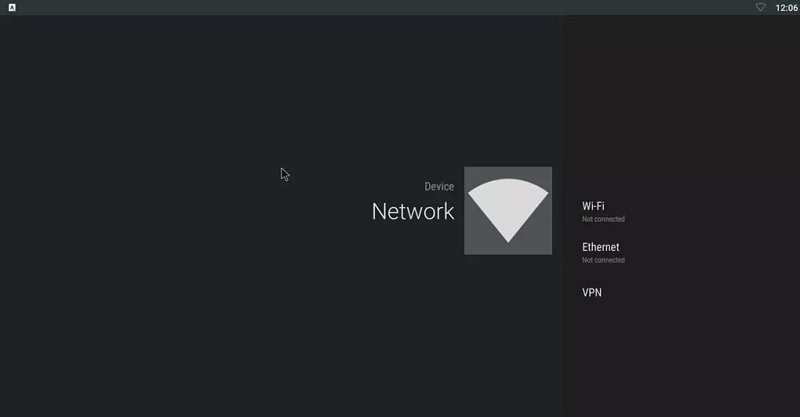
If your device doesn’t make you connect the device to the internet when you first boot up the device, you need to do it manually. Go to the Settings section of your device and click on Network. From here you’ll be able to use Ethernet or Wi-Fi and select your network.
Create a Google account
The first thing you need to do after connecting the box to the internet is to create a Google account and start the process of updating any preinstalled apps and syncing any data you require. You can use the Google Play Store to download tons of different applications and Android games which turns your normal TV into a Smart TV.
Updating your Android box
Downloading updates is complex for every device. It’s normally discovered in an app, but it could be also in the settings section. It just depends on the manufacturer who created the device.
Here are some of the more common places that you can go to update your setup box:
In the Settings menu on About section, there is usually an option for System Upgrade. On the NVIDIA Shield TV, you can also install system upgrades to auto-download when available from this screen.
In the All Apps section, you’ll apparently find apps named like System Update or Update & Backup which you can use to update the box.
Conclusion
In this article, we tried to explain how you can turn your old TV into a smart TV via using setup boxes and we explained how you can connect an android box to your Television. If anything is missing from this article, Contact AmbKonnect support or browse our Help Centre.