
This guide will walk you through how to use Plex on your PlayStation 4 (PS4) to stream IPTV channels.
Plex is a user-friendly media server application that makes it easy to stream content from your home network to a wide range of compatible devices. Unlike some of its competitors, Plex is designed for everyday users and doesn't require advanced technical skills to set up and use.

📺 Plex Overview
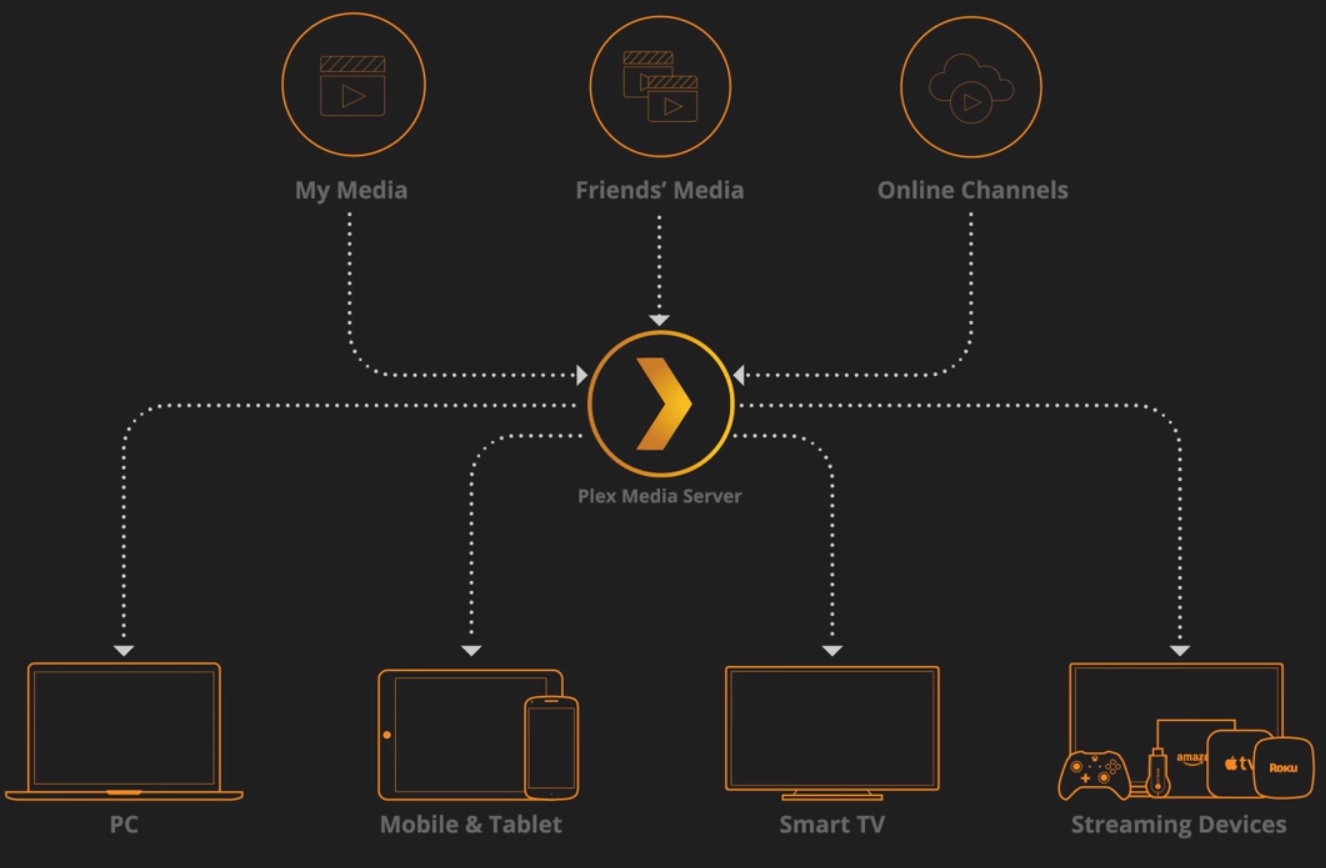
Plex is a powerful media management and streaming platform that allows users to easily organize and share their personal collection of movies, TV shows, music, photos, and other media. It works by setting up a central server to host your media, which can then be accessed and streamed through various Plex client apps on compatible devices.
By installing Plex Media Server on a computer within your home network and adding your media files to its libraries, Plex automatically scans and retrieves information for your content. Once the setup is complete, you can use the Plex app (called a Client) on devices like your smart TV, smartphone, tablet, or gaming console to browse and stream your media library. As long as these devices are connected to the same network, they’ll automatically detect the server and display your media ready to play.
🗂️ Host Your Media in One Place
To use Plex effectively, the Plex Media Server must be installed on a computer in your home. Without it, the client apps won’t be able to stream any content. While setting up a media server may seem a bit technical at first, the benefits far outweigh the effort. In our experience, launching Plex for the first time was incredibly smooth and surprisingly exciting.
📱 Effortless Device Integration
Adding new devices to your Plex ecosystem is simple. Just install the Plex app on the device, launch it, and it will automatically search for and connect to your Plex server over the network. Once connected, the app instantly gains access to your media library, and content is ready to stream. As long as your server is running, there’s no need for repeated setup — the process is nearly instant.
🎛️ Centralized Media Management
With all your content managed from one server, you gain complete control over your media collection. You can add new movies, update metadata, or change artwork for your favorite series — all through the Plex Web App, which runs from any web browser in your home. No matter where you are in the house, you can manage your entire library, and any updates you make are reflected across all devices immediately.
📌 Track Your Viewing Progress
Plex automatically tracks what you've watched and where you left off. Each title in your library has a “watched” status indicator, making it easy to see what you’ve already viewed. If you pause in the middle of an episode or movie, Plex remembers your spot and resumes playback right where you left off — even if you switch to a different device.
📡 How to Stream IPTV Channels on PS4 Using Plex
✅ Step 1: Download and Install Notepad++
To begin, download and install Notepad++, which you’ll need for editing configuration files later in the process.
👉 Download Notepad++
✅ Step 2: Create a Plex Account
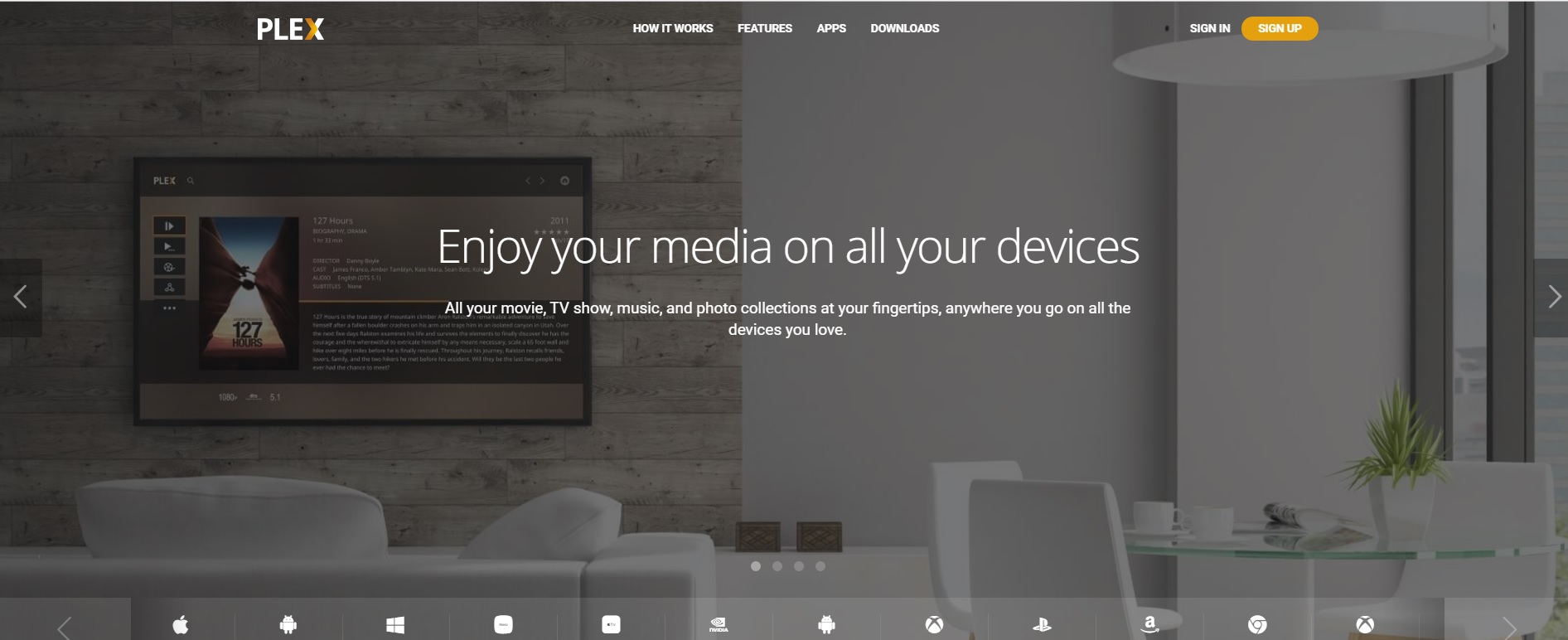
Next, head over to https://www.plex.tv/ and create a Plex account if you don’t already have one.
As mentioned earlier, Plex is typically used to stream movies, music, and photos from your computer. However, in this tutorial, we'll focus specifically on setting it up to stream IPTV channels on your PS4.
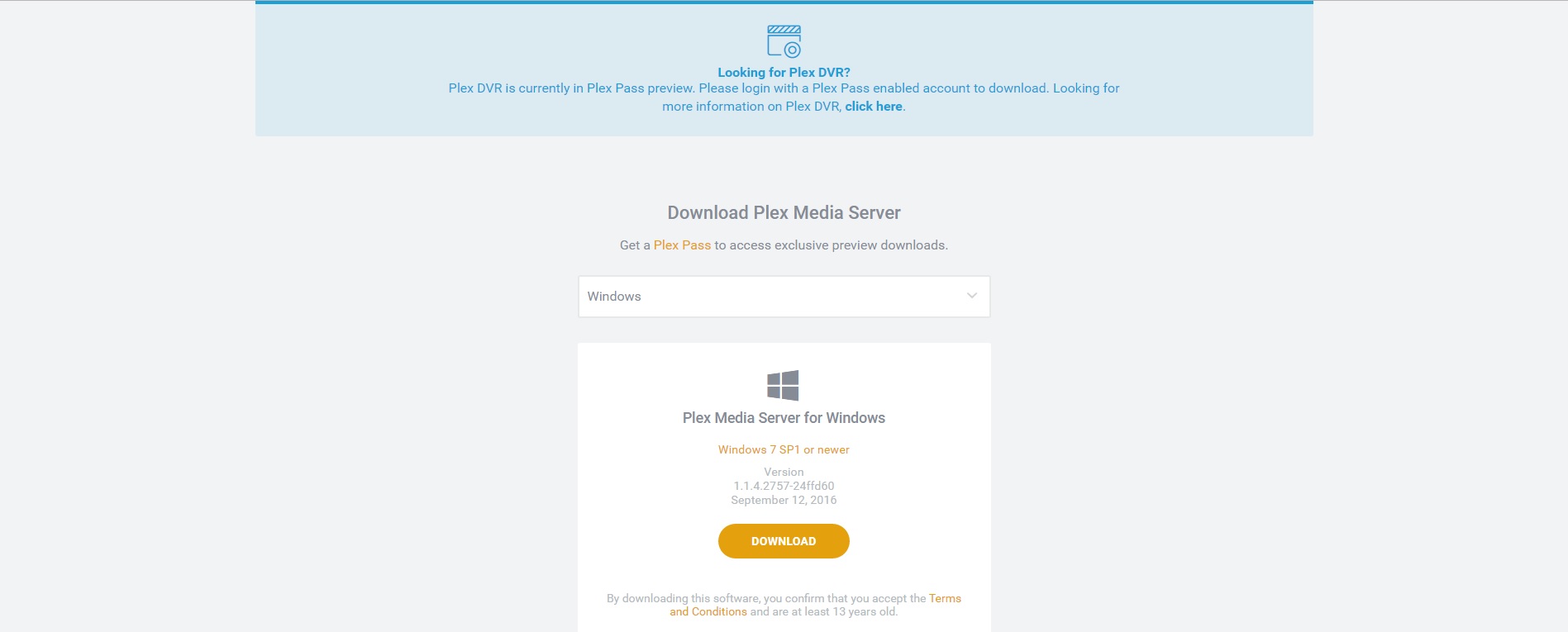
Step 3: After creating your account, go to the “Downloads” section and look for “Plex Media Server” and download it.
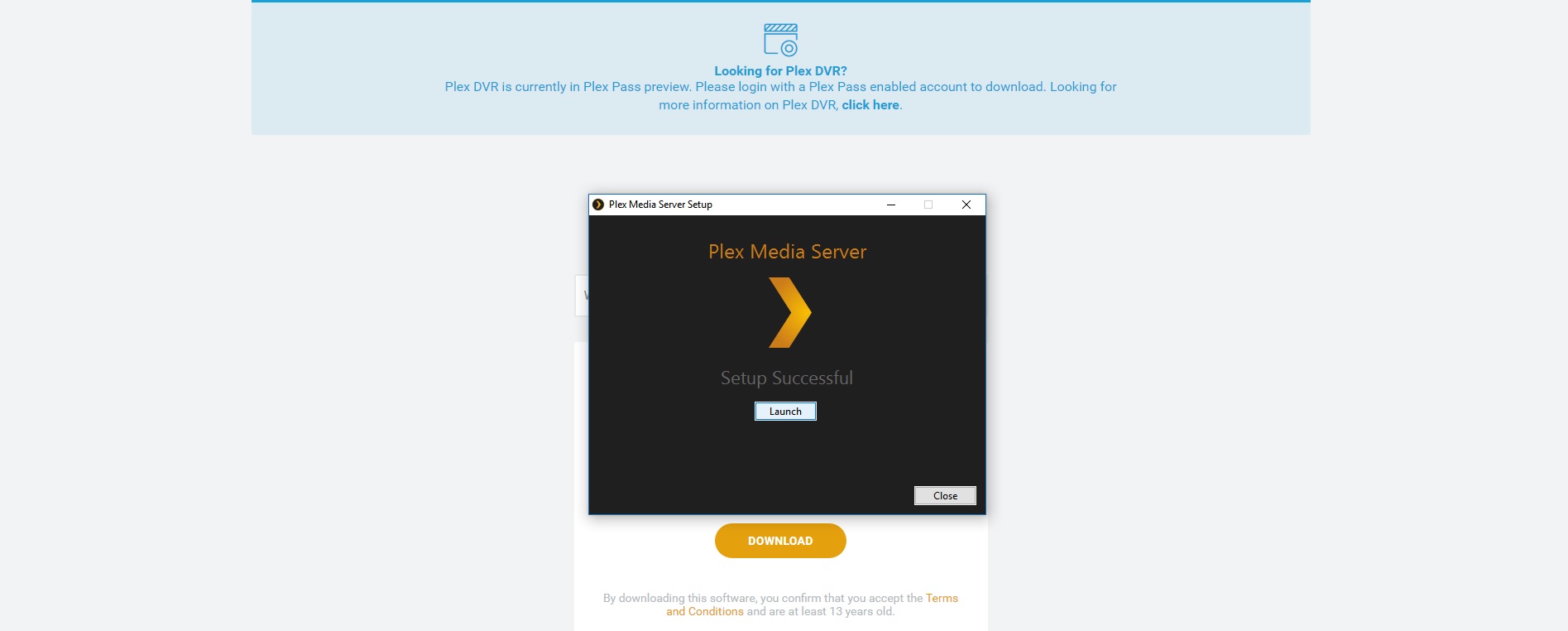
Step 4: After downloading and installing Plex, you can go ahead and launch it.
✅ Step 5: Download the IPTV Plugin for Plex
To proceed, you'll need the IPTV plugin for Plex.
👉 Click here to download the plugin
✅ Step 6: Install the Plugin
Once you've downloaded and extracted the ZIP file, locate the folder named IPTV.bundle-master.
Copy this entire folder and paste it into the following directory on your PC:
C:/Users/“YourUsername”/AppData/Local/Plex Media Server/Plug-ins
🔍 Replace “YourUsername” with your actual Windows account name.
✅ Step 7: Edit the Plugin Configuration
Inside the extracted folder, navigate to the Contents subfolder. There, you’ll find a file named info.plist.
Right-click on info.plist
Select “Edit with Notepad++”
You should now see the configuration details open for editing in Notepad++. The next steps will involve customizing these settings to match your IPTV setup.
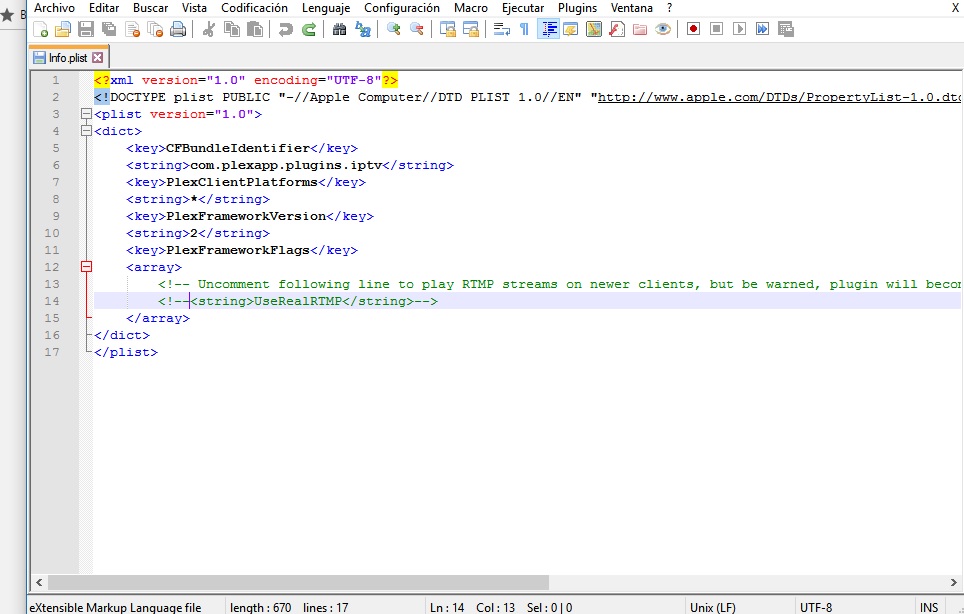
Step 8: Now you must remove the bold section of the line:
<!--<string>UseRealRTMP</string>-->
and leave only
<string>UseRealRTMP</string>
just like the below image:
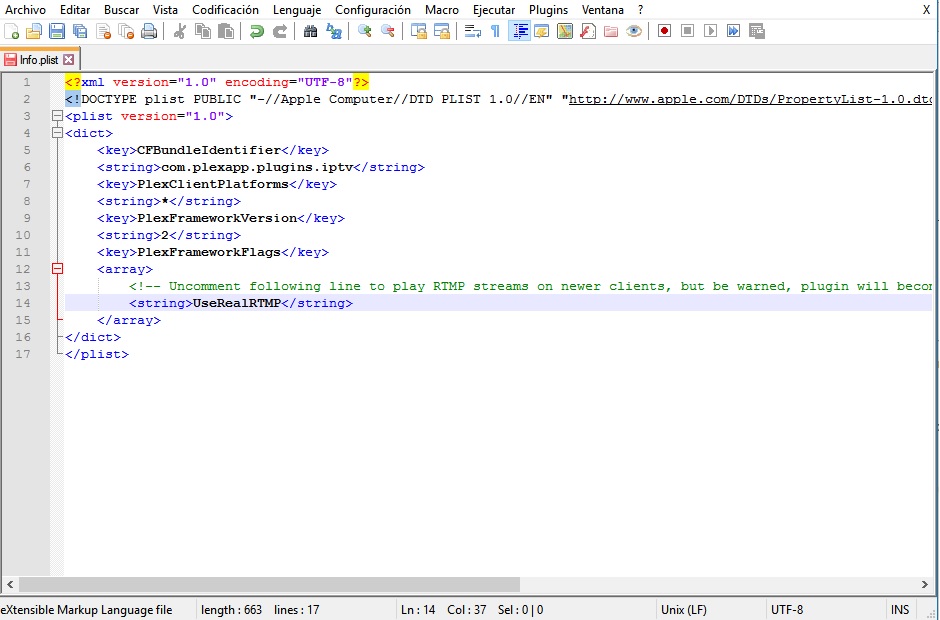
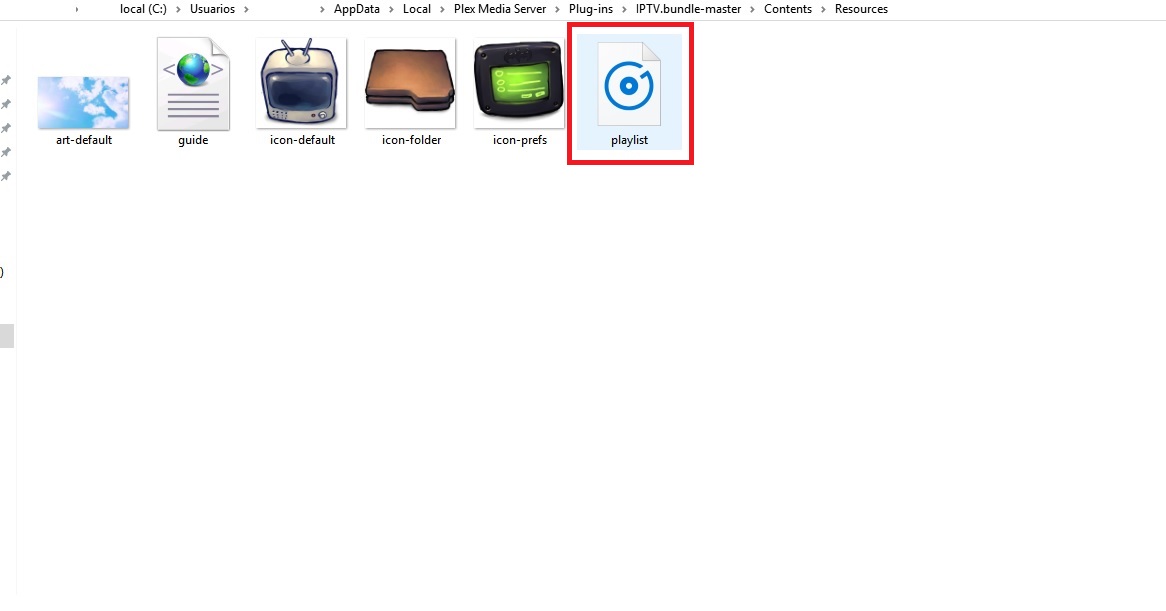
Step 9: Enter the folder “Contents” and open “resources”. Here you must download your M3U playlist and replace it with the playlist file which already exists in this folder.
Step 10: Move back to the folder “IPTV.bundle-master” and rename it to “IPTV.bundle”
Step 11: The PC part is done for now. Turn on your PS4, open the store and search for PLEX and download it.
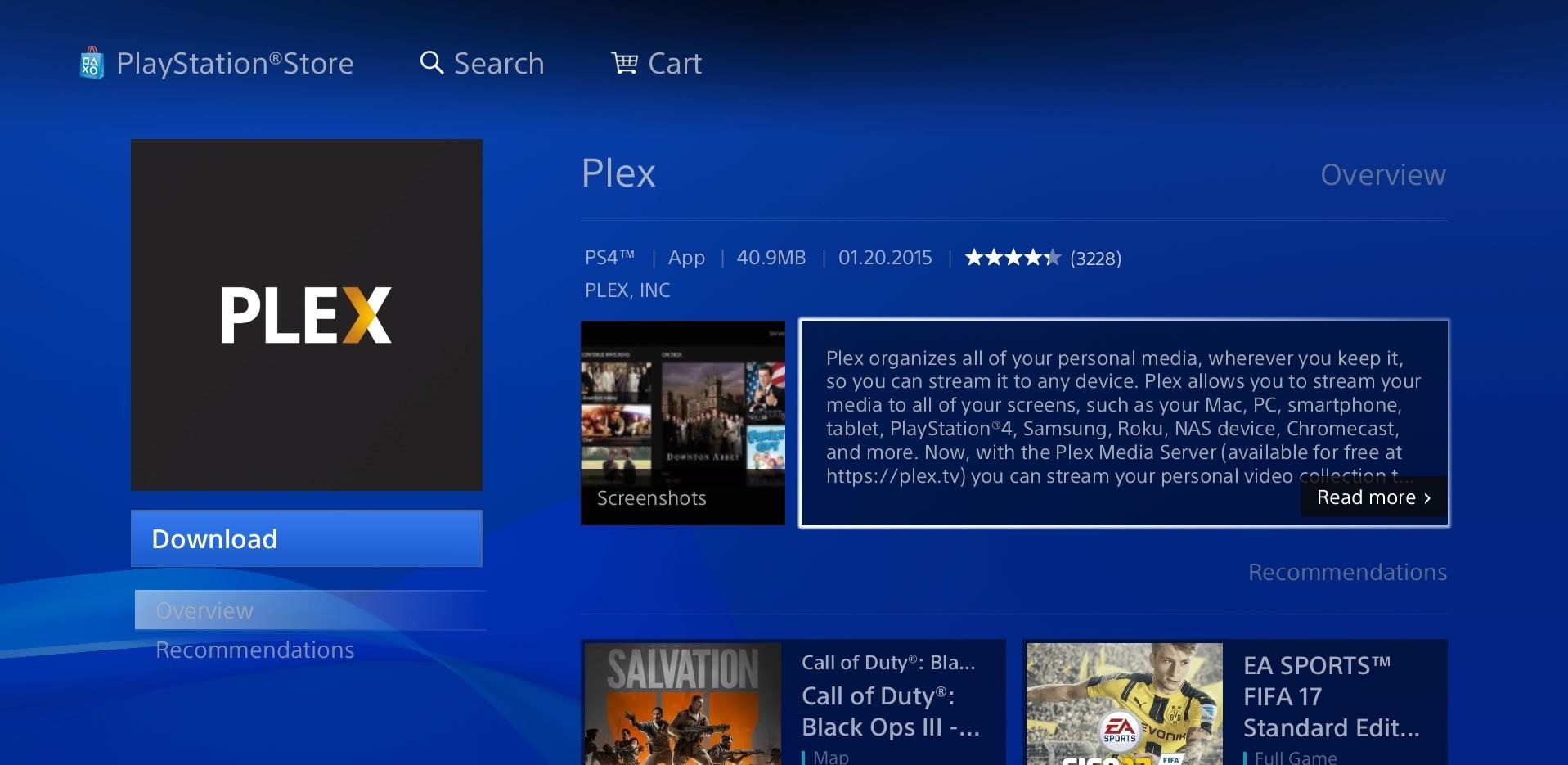
Step 12: After downloading and launching Plex on PS4, you need a code to sign in to your account which you can go to https://plex.tv/link and enter it.
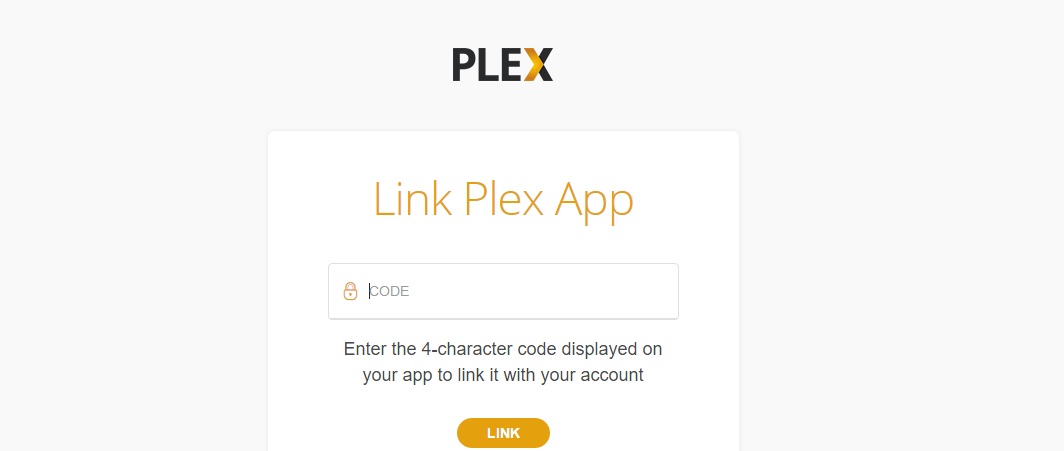
Step 13: As the final step, open Plex in your computer and then in your PS4 in order to watch the channels that you added earlier.
Please note:
*The Plex needs to be opened all the time on your computer before watching the channels in your PS4.
*Don’t forget to close and restart PLEX on both PC & Playstation after updating the playlist.m3u inside the resources folder.
*The channels are also available to stream on your phones & tablets through the Plex app on your PC.