
In this guide, we’ll walk you through the steps to set up IPTV channels on MYTV Online using a Formuler Z device.
Formuler Z is a modern hybrid device that combines an IPTV receiver with an Android media player. Since it runs on the Android operating system, it supports the latest versions of popular apps, giving you both IPTV functionality and full access to Android-based media features.
⚠️ Important Tip Before You Begin
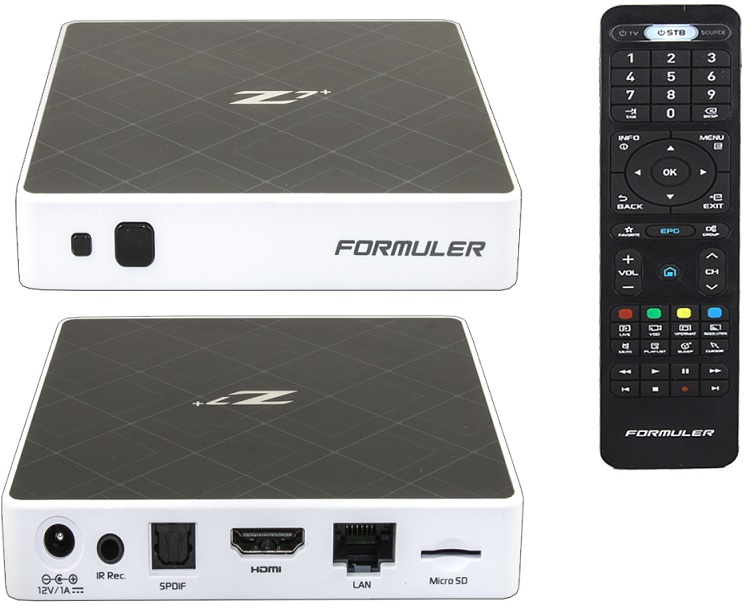
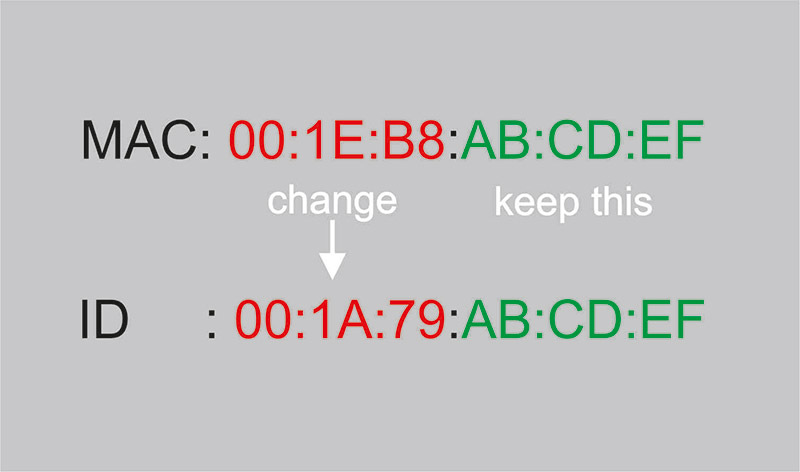
Formuler Z devices come with both a MAC address and a Box ID. You can locate the MAC address either in the device’s user manual or printed on the back of the box.
The MAC address will look something like this:
MAC: 00:1E:B8:XX:XX:XX
To convert this to the required Box ID, simply replace the first six characters with:
00:1A:79, resulting in a format like:
ID: 00:1A:79:XX:XX:XX
This adjusted ID is what you’ll need when setting up IPTV on MYTV Online.
📺 How to Set Up IPTV Channels on Your Formuler Z Device
This guide is compatible with all Formuler Z models, including Formuler Z1, Formuler Z7+, and others in the series.
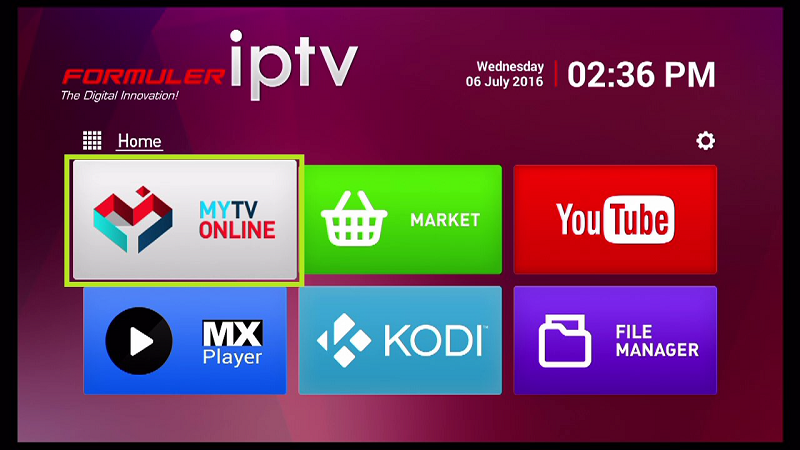
✅ Step 1: Install and Open MYTVOnline
Begin by downloading the MYTVOnline app from the Google Play Store.
Once installed, launch the app to start the IPTV setup process.
✅ Step 2: Configure Your IPTV Service
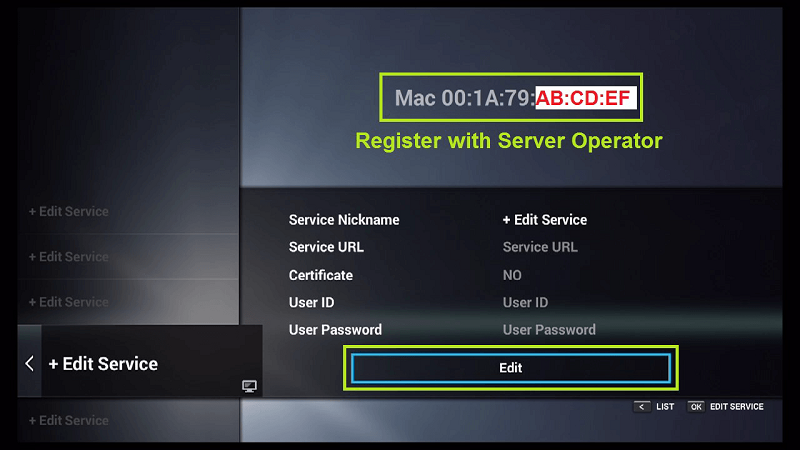
Click on “Edit Service”, then select “Edit” to proceed.
🔔 Important: Make sure you use the correct ID address (not the MAC address). Refer to the tip above if you're unsure how to convert it.
This ID must be provided to your IPTV provider for activation.
When adding the ID, register it as a MAG device and connect using the MAG portal.
Step 3: Enter “Service Nickname” (Example: AmbKonnect) and click on “OK“.
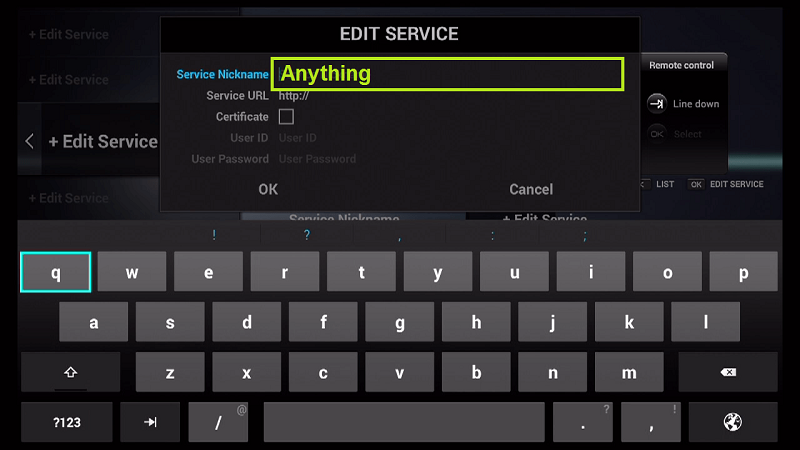
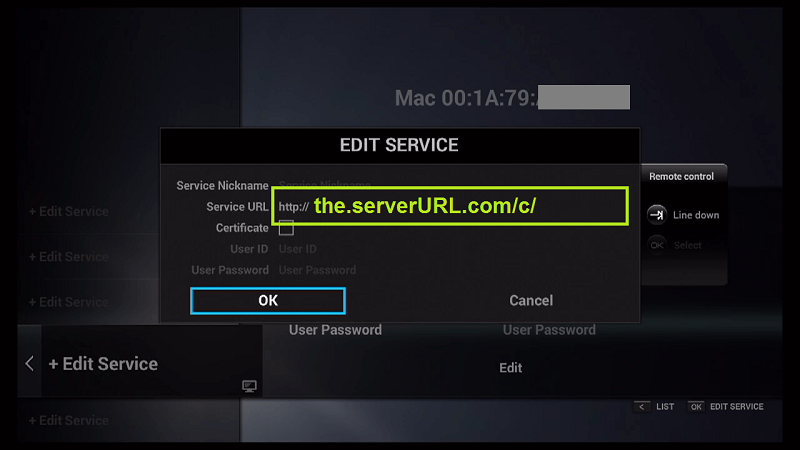
Step 4: Enter IPTV Server URL (STB MAG Emulator/ Portal URL) you get from your IPTV provider and click on “OK”. You can ask for portal URL from your IPTV service provider.
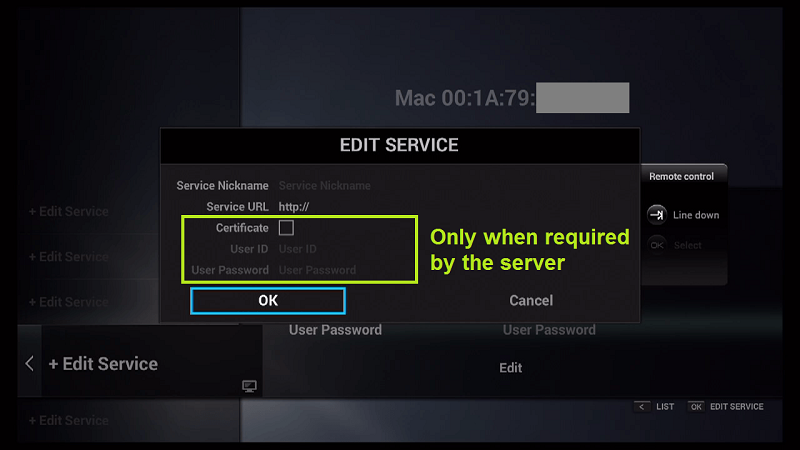
Step 5: Enter Username and Password is NOT necessary.
Step 6: Click on “OK” and proceed to the next step. Please note, this might take a little time.
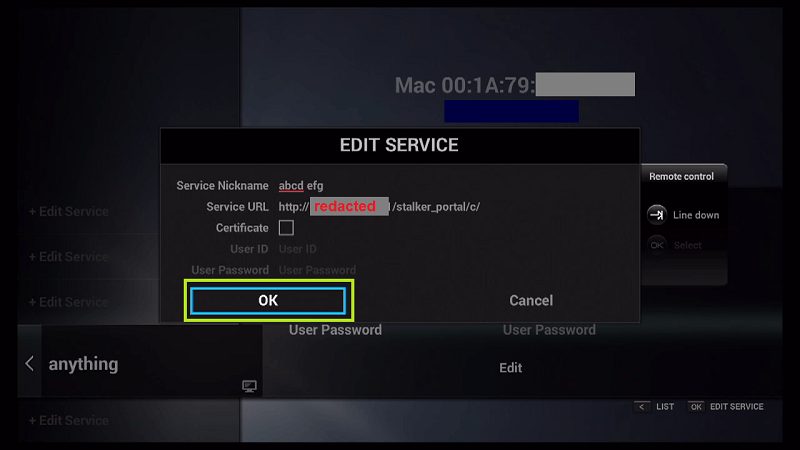
Step 7: Connecting to IPTV Server (with your registered data) is in progress now.
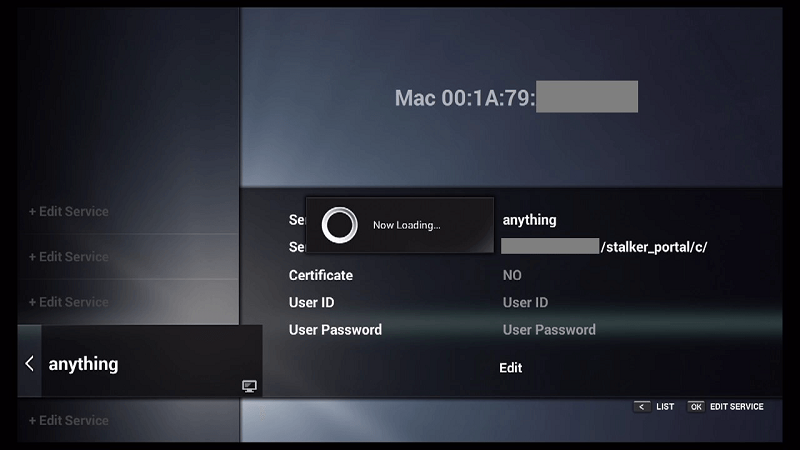
Step 8: Successful Connection! You receive all channels associated with your account.
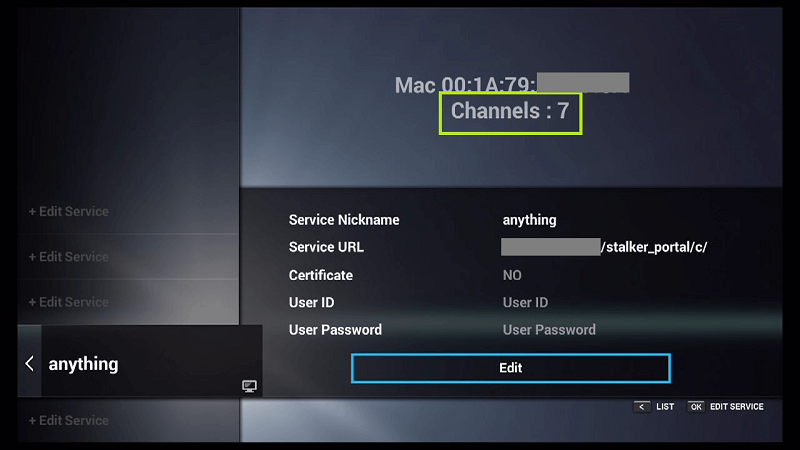
Now Everything is ready and you can start watching Live TV.
Conclusion
There you have. MyTV Online is a great addition to Enigma2 based devices and goes great along with Xtream PluginTV on your Enigma2 device.